Please Note that ChekT must be configured and setup in accordance with ChekT recommendations’ and settings. Please review
https://support.chekt.com/portal/en/home for more information.
Please Ensure that if you are using CCTV Camera Analytics to trigger the Chekt Alarm that you also Enable AI Filtering on the cameras. This will ensure that only valid and real alerts are sent to Alarm Watch.
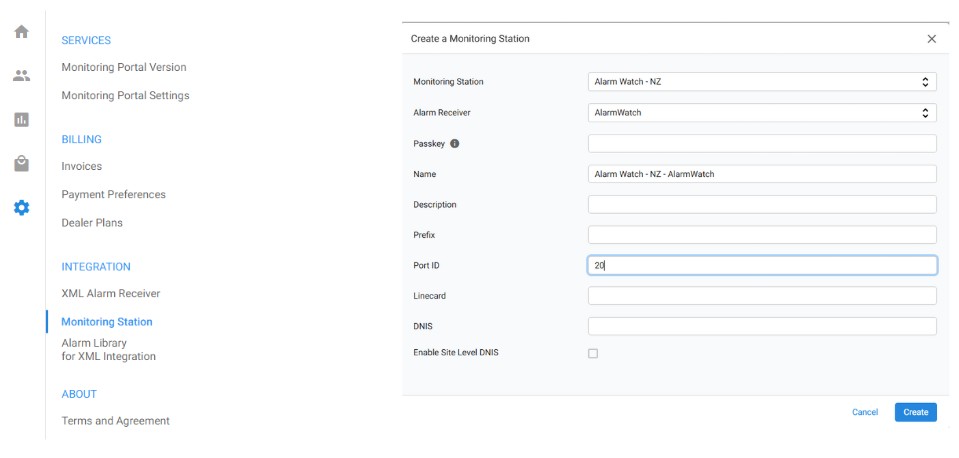
From the ChekT Dealer Dashboard, Select Settings & Monitoring Station
Click on “Add” to create a monitoring station. In the first two Drop Down Boxes, Select Alarm Watch
In Port ID Box enter “20” and then click on “Create”
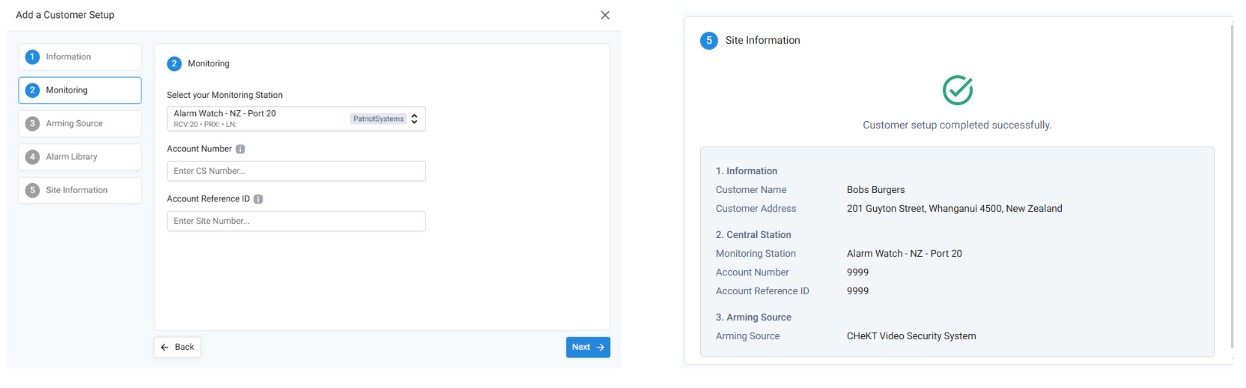
When you add a new customer in the Chekt Portal you will be prompted for monitoring setup.
In the Drop Down Box, Select the previously created Monitoring Station “Alarm Watch NZ – Port 20”
Enter the 4 Digit Alarm Watch Account Code obtained from Alarm Watch into both the account Number and Account Reference Fields.
When complete you should get a success screen and events will now e delivered to Alarm Watch