
ADT manuals
Command ADT5AIO / ADT7AIO cheat sheet
Arm (away)your code2
- Close doors and windows. The Command control's right-hand status light is steady green when it is ready to arm.
- On the Command's screen, touch Arm Away, then key in your user code.
- The exit delay countdown starts, with beeps if they are turned on.
- The control's status light turns steady red: the system is armed.
- On a WLTP100 wireless touchpad: key in your code, then 2. Two beeps confirm it.
Arm while homeyour code3
- On the Command's screen, touch Arm Stay when you will be home, then key in your code.
- Arm Custom arms with the zones you choose left out.
- INSTANT arms like Stay but with no entry delay: opening the entry door sets the alarm off at once.
- On a WLTP100 touchpad: your code, then 3. Three beeps confirm it. Your code, then 3 twice, is Night-Stay.
Disarmyour code1
- If the control is beeping fast when you come in, an alarm went off while you were out. Leave and call the police from somewhere safe.
- On the Command's screen, touch Disarm, then key in your code. The system disarms and the entry beeps stop.
- After an alarm, the zones that went off stay on the screen. Disarm again to clear them.
- On a WLTP100 touchpad: your code, then 1 (OFF). Do it twice to clear the alarm display.
Bypass a zoneyour code6zone
- Each detector or door contact is a zone. A bypassed zone is not protected.
- On the Command's screen, touch Zones, then pick the zones to bypass from the list.
- Touch BYPASS, then key in your code. Bypassed zones show a bypass mark in the list.
- Arm as usual.
- On a WLTP100 touchpad: your code, then 6 (BYPASS), then each zone's 3-digit number.
Chime on or offyour code9
- On a WLTP100 wireless touchpad, key in your code, then 9 (CHIME).
- With chime on, opening a door or window while disarmed gives 3 beeps at the touchpads.
- Your code and 9 again turns it off.
- On the control's screen, Tools, the master code, then Settings has Chime and Voice Chime buttons that mute those sounds.
Panic alarmthe key with a warning triangle on itthenthe key with a shield on it
- On the Command's screen, touch the circled exclamation mark at the top right.
- Touch Fire, Police or Personal. An alarm message goes to your monitoring company.
- Police is silent unless your installer changed it. Personal works only if it has been programmed.
- Your installer decides which panic alarms your system has.
- On a WLTP100 touchpad, press PANIC (warning triangle), then within 10 seconds the flame (fire), shield (police) or cross (personal) key.
Pages 7, 10, 18, 22 of the ADT Command ADT7AIO ADT5AIO Quick User Guide 800-24123Circled exclamation mark Opens the Fire, Police and Personal alarm choices Change a codemaster code8user numbernew code
- On the Command's screen, touch Tools and key in the master code, then touch Users.
- Pick the user and touch EDIT, or touch ADD NEW for a new user.
- Touch User Code, key in a 4-digit code and touch Save.
- Choose the Authority Level (User, Arm Only, Guest or Master), then touch Save.
- On a WLTP100 touchpad: master code, 8 (CODE), the user number, then the new code.
Test the systemmaster code51
- Disarm and close all doors and windows. The control's status light should be green.
- On the Command's screen, touch Tools, key in the master code, touch Advanced, then Walk Test.
- Open and close each door and window, and walk past each detector: 3 beeps each time. No alarm messages go out during the test.
- When you finish, press the control's Home button and key in the master code if asked.
- On a WLTP100 touchpad, the master code, then 5 and 1, starts a walk test.
Trouble lights
- On the Command control, the two lights above the screen show power (left) and status (right).
- Touch System on the home screen to see the system's status.
- On a WLTP100 touchpad, an amber TROUBLE light means a system trouble; flashing amber means a device trouble.
- On a WLTP100, your code then 1 (OFF) silences trouble sounds, and clears the display once it's fixed.
Pages 7, 9, 14 and 15, 17 of the ADT Command ADT7AIO ADT5AIO Quick User Guide 800-24123Power steady green Mains power on, battery charged Power flashing green / off Low battery / no mains power Status steady green Ready to arm Status off Not ready to arm Status steady red Armed Status flashing red An alarm or alarm memory (or programming mode) Status steady amber System trouble Status flashing green or amber Device trouble: flashing green can still arm, flashing amber can't Send a test signalmaster code52
- On the Command's screen, touch Tools, key in the master code, touch Advanced, then Comm. Test.
- On a WLTP100 touchpad, the master code then 5 and 2 starts the communication test.
- Our quick guide doesn't say what the test shows, so ring your monitoring company to check it reached them.
ADT keypads
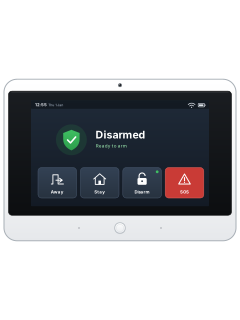
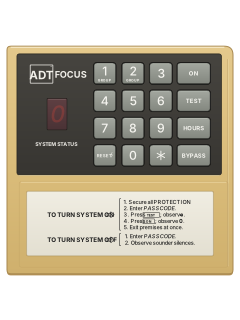
Focus / Focus 100 keypad
1 manual
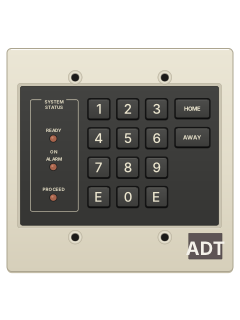
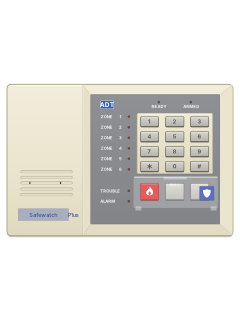
Safewatch Plus LED console
1 manual
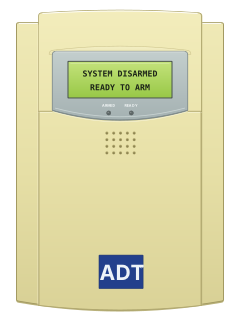
Portrait LCD keypad with door
1 manual
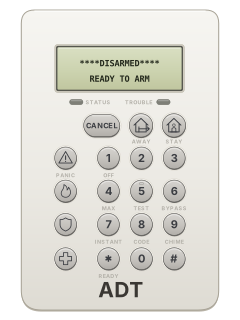
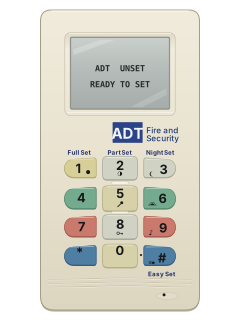
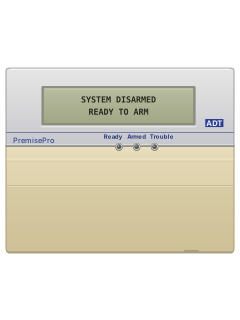
Every ADT manual
Nothing here matches that.
Try a shorter search, or search every brand.










Is anyone watching your alarm?
An alarm that only makes a noise relies on someone hearing it. A monitored alarm reports to our A1 graded, NZSA approved control room, watched 24/7 by a team that is New Zealand owned and operated. We can monitor most existing alarms, so you may not need a new one. Thinking about a new alarm or security cameras? Ask us for a quote.
Prefer to talk now? Call us on 0800 339 999.
Home: alarm monitoringBusiness: business monitoringInstaller: bureau monitoring

Manuals are the property of their manufacturers and are provided for reference only; their inclusion here does not imply any endorsement by the manufacturer.