
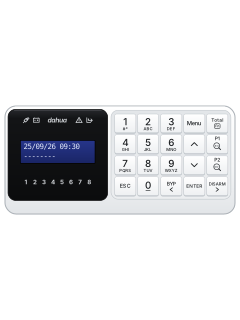
ARK30CLCD keypad

Dahua Alarm Controller manuals
Start hereDahua Alarm Controller User's-Manual V2.0.0User guide · 67 pages · 1.3 MBRead it nowKeypad cheat sheet
Arm (away)your codeTotal1ENTERorholdTotal
- Dahua calls this total arming. First check the screen's second line has no * (a * marks an area with a zone open).
- Key in your code and press Total. The areas ready to arm show on the screen.
- Press each area's number (1 for area 1), then ENTER. The keypad sounds, the area shows T and its number light comes on.
- The keypad keeps sounding through the exit time. Leave before it ends.
- If your installer has set up rapid arming, holding Total arms without a code. You still need a code to disarm.
Arm while homeyour codeP11ENTERoryour codeP21ENTER
- Dahua calls this partition arming. P1 and P2 each arm only a set group of detectors.
- Key in your code and press P1 (or P2). Press the area's number, then ENTER.
- The area shows 1 (or 2) and its number light comes on. The keypad sounds through the exit time.
- Arm the other partition while one is on and the area shows P: both partitions are armed.
- If your installer has set up rapid arming, holding P1 or P2 arms that partition without a code.
Disarmyour codeDISARM1ENTER
- Key in your code and press DISARM. The areas you can disarm show on the screen.
- Press the area's number (1 for area 1), then ENTER to disarm it fully.
- The same steps stop an alarm.
- Under threat, key in your code with its last digit one higher or lower, then DISARM, the area and ENTER. It disarms and triggers a duress alarm.
Bypass a zoneyour codeBYPzoneENTER
- Each detector or door contact is a zone. A bypassed zone is left out until its area is next disarmed.
- Key in your code and press BYP. The bypass screen shows.
- Key in the zone number (for zone 12, press 1 then 2), then press ENTER.
- The bypass light stays on while any zone is bypassed.
- ZONE MANAGER in the user menu can also isolate a zone. An isolated zone stays off until it is set back to ACTIVE.
Alarm memoryhold1oryour codeMenu
- During an alarm, that area's number light flashes and the screen's first line gives the reason, such as ZONE ALARM.
- Hold the area's number key (1 for area 1) for 3 seconds to see the zone that set it off. The arrows show any others.
- If no alarm details show, key in your code and press the up arrow first, then hold the area's key again.
- For the full log, key in your code, press Menu, scroll to LOGBOOK EVENT and press ENTER. Newest events come first; ESC goes back.
- The area light keeps flashing slowly until you key in your code and disarm again.
Panic alarmTotal1
- Press Total, then 1, for a panic alarm. Depending on set-up it is silent or sounds the sirens and keypad.
- Total, then 2, sends a silent robbery alarm. Nothing shows on the screen, but it goes in the log.
- Total, then 3, starts a medical alarm with the keypad sounding. Total, then 4, starts a fire alarm with keypad and siren.
- Press Total first and let it go, then the number.
Change a codeyour codeMenu
- Key in your code, press Menu, scroll with the arrows to ACCESS CODES, then press ENTER.
- Pick the code number with the arrows (code 1 is the supervisor) and press ENTER.
- Press ENTER to step through each setting, leaving it as it is, until NEW CODE shows.
- Key in the new code (4 to 6 digits, not starting with 0) and press ENTER. PWD VALID shows: key it in again and press ENTER.
- PWD INVALID and two beeps mean it didn't take: start again.
Set the date and timeyour codeMenu
- Key in your code, press Menu, scroll with the arrows to DATE/TIME, then press ENTER.
- Key in the time, press Menu to show it, then press ENTER to confirm it.
- Set the date the same way, as day, month and year.
- Press ENTER to confirm the settings. To leave, press ESC until EXIT FROM MENU? shows, then press ENTER.
Test the systemyour codeMenu
- Walk test: key in your code, press Menu, scroll to WALK TEST, then press ENTER. It only works while disarmed.
- The screen shows each detector's state: CLOSED, OPEN, TAMPER, SHORT or MASK.
- Total, then 3, switches between A (only triggered zones show) and B (step through zones with the arrows).
- Other keypads show OUT OF USE meanwhile. The test doesn't end by itself: press ESC to finish.
Trouble lights
- When the fault light (the triangle) is on or flashing, a system fault may be present.
- To see it, key in your code, press Menu, scroll to SYSTEM TROUBLES and press ENTER.
- Faults show under TAMPER, TROUBLE (such as mains, battery, phone line or date and time) or COM TROUBLE (a keypad or module).
- ZONE TROUBLES, the first menu item, lists zones that aren't ready and why.
Pages 24 and 25, 40, 42 and 43 of the Dahua Alarm Controller User's-Manual V2.0.0Power light on Normal mains power Power light flashing slowly No mains power: check the power Power light flashing fast Installer programming or a walk test is running Battery light flashing slowly A battery fault, such as a low battery Fault light on A system fault, such as mains or battery: see SYSTEM TROUBLES Fault light flashing slowly Someone has tampered with the controller, a siren or a keypad Bypass light on At least one zone is bypassed Area lights 1 to 8 On: armed. Slow flash: an alarm has happened. Fast flash: in alarm now. Off: disarmed
All Dahua Alarm Controller manuals
Nothing here matches that.
Try a shorter search, or search every brand.
More Dahua models
Is anyone watching your alarm?
An alarm that only makes a noise relies on someone hearing it. A monitored alarm reports to our A1 graded, NZSA approved control room, watched 24/7 by a team that is New Zealand owned and operated. We can monitor most existing alarms, so you may not need a new one. Thinking about a new alarm or security cameras? Ask us for a quote.
Prefer to talk now? Call us on 0800 339 999.
Home: alarm monitoringBusiness: business monitoringInstaller: bureau monitoring

Manuals are the property of their manufacturers and are provided for reference only; their inclusion here does not imply any endorsement by the manufacturer.