
Guardall manuals
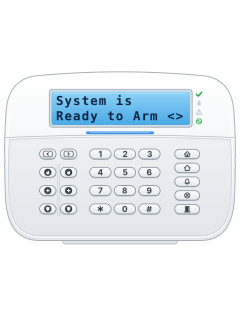
Keypad cheat sheet
Arm (away)your code✓02
- Guardall calls arming setting. Key in your code, then press ✓ (the green key). Each digit shows as *.
- Press 0 then 2 (Set). If you can set more than one group, press the group's number.
- 'Setting' shows. With timed setting, the exit time counts down (Seconds Left). 'Set' confirms it.
- Warnings, such as a bypassed circuit, may show first: press ✓ to see them, ✓ to set, or X to cancel.
- At 'Cannot Set', read the fault details. During exit time, press X on the keypad used to start setting to cancel.
Disarmyour code✓01
- Come in by your entry route and go straight to the keypad. Guardall calls disarming unsetting.
- Key in your code and press ✓, then 0 1 (Unset). With several groups set, press the group's number.
- Your system may unset as soon as you log on, if it's set up that way.
- After an alarm, its details show, such as 'Alarm PIR in Office'. At '✓=Reset', press ✓ to reset it.
- 'Call Engineer', then a phone number and code? Ring it and quote the code: an engineer resets it, or you get a one-time 5-digit code to log on with.
Bypass a zone
- Guardall calls zones circuits. Only circuits your engineer made bypassable can be bypassed.
- Log on (code, then ✓), press 3 0 (Bypass), then key in the circuit number. Its current state shows.
- Follow the display to bypass it. It stays bypassed until it's next unset, or until someone removes the bypass.
- There's a limit on how many can be bypassed at once; the display tells you if you reach it.
Pages 5, 12, 40 of the Guardall PX Control Panel User ManualYour code, then ✓ Logs you on 3 0 Opens Bypass The circuit number Its state shows: follow the display to bypass it Alarm memoryyour code✓151
- The system must be unset. Log on, press 1 5 (Log-Alarm), then 1 to show it on the display.
- Step through the alarms with the up and down arrows.
- Press ? to switch the top line to the time and circuit number, and again for the user number.
- 1 0 (Log-Full) shows every event, not only alarms.
Chime on or offyour code✓32zone
- Chime is switched circuit by circuit, and only some circuit types can chime. It works while the system is unset.
- Log on, press 3 2 (Chime), then key in the circuit number. Its name shows.
- Press any key to see its chime status, then 1 to turn chime on or 0 to turn it off.
Change a codeyour code✓06new codethennew code
- Log on with your current code (then ✓) and press 0 6 (Code).
- At 'New Code', key in a new 4, 5 or 6 digit code. Key it in again at 'Re-enter Code'.
- 'Not Available' means that code can't be used: choose another. 'Does not Match' means try again.
- No Code option? Your system doesn't let you change it: ask whoever manages your system.
Set the timeyour code✓20time
- The engineer sets the clock. If your code is allowed to, you can move it by up to 75 minutes either way.
- Log on, press 2 0 (Time), then start typing the new time as HH:MM.
- The old and new times are recorded in the log.
Test the systemyour code✓04
- Test isn't available while an area is set. Log on, press 0 4 (Test), then key in the area number (0 for the whole system).
- Pick a test from the list on the display: sounder, strobe, internal sounder, walk test (4) or comms test (5). X stops the first three.
- Walk test lists the circuits not tested since the last unset. To test them all, pick walk test, press X, then pick it again.
- Set each circuit off until 'All Tested' shows.
- Test mode ends by itself after 1 hour.
Trouble messagesyour code✓
- The mains light on the keypad flashes when the system is running on its standby battery.
- If it fails to set by the end of the exit time, the exit tone changes. Log on to see why.
- Messages may show when you log on, before the menu. The common ones are in the table.
Pages 6 and 7, 11 to 14, 18 and 19, 40 of the Guardall PX Control Panel User ManualMains light flashing Running on the standby battery Call Engineer Call your installation company Cannot Set Something stops setting: the reasons follow Line Fault (a warning as you set) A phone line fault. Your system lets you set anyway Code Known Someone else chose your code: change it Incorrect Code That code wasn't recognised Out Of Service Keypad locked for 5 minutes after too many wrong codes, turned off, or an engineer is logged on Not Available That option can't be used now: the reason shows below it Send a test signal
- The comms test makes the panel call every phone number your engineer set up for test calls.
- It needs a manager or ordinary user code, and every area unset: Test isn't available while an area is set.
- Log on (code, then ✓) and press 0 4 (Test). Key in the area number, 0 for the whole system, then pick 5.
- The event log records it as Comm Test.
Pages 7, 12, 21, 23, 26, 33 of the Guardall PX Control Panel User ManualYour code, then ✓ Logs you on 0 4 Test: the display asks for the area number The area number, or 0 for the whole system The test list shows 5 Comms Test: the panel makes its test calls
Every Guardall manual
Nothing here matches that.
Try a shorter search, or search every brand.











Is anyone watching your alarm?
An alarm that only makes a noise relies on someone hearing it. A monitored alarm reports to our A1 graded, NZSA approved control room, watched 24/7 by a team that is New Zealand owned and operated. We can monitor most existing alarms, so you may not need a new one. Thinking about a new alarm or security cameras? Ask us for a quote.
Prefer to talk now? Call us on 0800 339 999.
Home: alarm monitoringBusiness: business monitoringInstaller: bureau monitoring

Manuals are the property of their manufacturers and are provided for reference only; their inclusion here does not imply any endorsement by the manufacturer.