
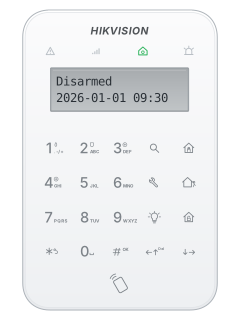
Wireless LCD keypad

Hikvision AXHub manuals
Start hereAX Pro User ManualUser guide · 159 pages · 3.3 MBRead it nowKeypad cheat sheet
Arm (away)your codethe key with a walking figure on it
- These steps are for the keypad with a screen (DS-PK1-LT). For the keypad without a screen (DS-PK1-E), see its own guide.
- Key in your code, or show your tag for under 3 seconds. Then press Away: the house with a person walking out.
- If the arming check is on, the screen shows Waiting for arming, then any faults. Scroll through them, then press Away again to arm, or Disarm to stop.
- Leave while the arm light flashes blue. Once armed, it glows solid blue for 5 seconds and the keypad beeps twice.
- If your installer has turned them on, Away with no code arms (one-push arming), and a quick tag swipe arms (simple mode).
Pages 1 to 4 of the DS-PK1-LT-WE/WB Series Wireless LCD Keypad User ManualPage 97 of the AX Pro User ManualArm light flashing blue, slow beeps Exit time: leave now Arm light solid blue for 5 seconds, two beeps Armed Three short beeps It did not arm Arm while homeyour codethe key with a house with a person in it on it
- These steps are for the keypad with a screen (DS-PK1-LT). For the keypad without a screen (DS-PK1-E), see its own guide.
- The AX PRO calls this Stay. Doors and windows arm; zones set to skip in Stay, often indoor motion detectors, stay off.
- Key in your code or show your tag, then press Stay: the house with a person inside.
- The same arming check and exit time run as for away. Press Stay again during the exit time to arm straight away.
- If your installer has turned on simple mode, holding your tag to the keypad for 3 seconds or more arms in Stay.
Pages 1 to 4 of the DS-PK1-LT-WE/WB Series Wireless LCD Keypad User ManualPages 36, 61 of the AX Pro User ManualArm light flashing blue, slow beeps Exit time Arm light solid blue for 5 seconds, two beeps Armed in Stay Three short beeps It did not arm Disarmyour codethe key with a padlock on it
- These steps are for the keypad with a screen (DS-PK1-LT). For the keypad without a screen (DS-PK1-E), see its own guide.
- Key in your code or show your tag, then press Disarm: the house with a padlock. The arm light turns green.
- Under threat, key in your duress code, if you have one, instead of your own. It disarms and sends a duress alarm.
- If your installer has turned on simple mode, a quick tag swipe disarms.
- To work one area only, key in your code, then #, the area number, then Away, Stay or Disarm.
Pages 1 to 4 of the DS-PK1-LT-WE/WB Series Wireless LCD Keypad User ManualPage 68 of the AX Pro User ManualArm light flashing green, fast beeps Entry time: disarm now Arm light solid green Disarmed Three short beeps It did not work: try again Silence an alarmyour codeholdthe key with a padlock on it
- These steps are for the keypad with a screen (DS-PK1-LT). For the keypad without a screen (DS-PK1-E), see its own guide.
- Key in your code or show your tag, then hold Disarm (the house with a padlock) for 3 seconds or more.
- A short press of Disarm after your code disarms instead.
- The Hik-Connect app also has a Silent Alarm button that silences every area.
Pages 1 to 3 of the DS-PK1-LT-WE/WB Series Wireless LCD Keypad User ManualPage 61 of the AX Pro User ManualAlarm light (top right) flashing red An alarm has gone off Alarm light solid red A tamper alarm, such as a cover taken off Repeating alarm sound A fire, medical, panic or lid-open alarm Bypass a zone
- These steps are for the keypad with a screen (DS-PK1-LT). For the keypad without a screen (DS-PK1-E), see its own guide.
- Each detector or door contact is a zone. A bypassed zone is left out, so it cannot set off the alarm.
- Key in an administrator or installer code (only these open Settings), then press Settings: the spanner.
- Pick Bypass/Restore Bypass to bypass a zone, or to bring a bypassed zone back. The Hik-Connect app can bypass zones too.
Pages 2 to 4 of the DS-PK1-LT-WE/WB Series Wireless LCD Keypad User ManualPage 66 of the AX Pro User ManualTwo short beeps It worked Three short beeps It did not work Panic alarm
- These steps are for the keypad with a screen (DS-PK1-LT). For the keypad without a screen (DS-PK1-E), see its own guide.
- Before using panic or medical, ask your installer which key is which: the manual swaps the functions of keys 2 and 3.
- Once confirmed, hold the required key on its own for at least 3 seconds. You don't need a code.
- Hold 1, the flame, the same way for a fire alarm. Your installer can switch these three keys off.
- The keypad makes a repeating alarm sound, unless your installer has set panic or medical alarms to be silent.
Pages 1 to 3 of the DS-PK1-LT-WE/WB Series Wireless LCD Keypad User ManualPage 97 of the AX Pro User Manual1 (flame), held Fire alarm 2 or 3, held separately Panic or medical: confirm the key with your installer first Change a code
- These steps are for the keypad with a screen (DS-PK1-LT). For the keypad without a screen (DS-PK1-E), see its own guide.
- Key in an administrator or installer code (only these open Settings), then press Settings: the spanner.
- Pick User Management to add, edit or delete users. Tag Management does the same for tags.
- In the Hik-Connect app, User Management is where a user's keypad code and duress code are changed. Keypad codes are 4 to 6 digits.
Pages 2 to 4 of the DS-PK1-LT-WE/WB Series Wireless LCD Keypad User ManualPages 67 and 68 of the AX Pro User ManualTwo short beeps It worked Three short beeps It did not work Trouble lights
- These are for the keypad with a screen (DS-PK1-LT). For the keypad without a screen (DS-PK1-E), see its own guide.
- The fault light, the triangle at the top left, glows orange when there is a fault. It is off when all is well.
- To see the faults, key in your code, press Query (the magnifying glass), then press # to confirm.
- The Hik-Connect app shows faults too.
Pages 1 to 3 of the DS-PK1-LT-WE/WB Series Wireless LCD Keypad User ManualPage 60 of the AX Pro User ManualFault light orange There is a fault: press Query to see it Alarm light (top right) flashing red An alarm has gone off, or Find Me is on to locate the keypad Alarm light solid red A tamper alarm, such as a cover taken off Arm light (house) solid blue Armed Arm light solid green Disarmed Arm light flashing blue, slow beeps Exit time: leave now Arm light flashing green, fast beeps Entry time: disarm now Two short beeps / three short beeps It worked / it did not work
All Hikvision AXHub manuals
User guides 2

Installer manuals 1
Nothing here matches that.
Try a shorter search, or search every brand.
Is anyone watching your alarm?
An alarm that only makes a noise relies on someone hearing it. A monitored alarm reports to our A1 graded, NZSA approved control room, watched 24/7 by a team that is New Zealand owned and operated. We can monitor most existing alarms, so you may not need a new one. Thinking about a new alarm or security cameras? Ask us for a quote.
Prefer to talk now? Call us on 0800 339 999.
Home: alarm monitoringBusiness: business monitoringInstaller: bureau monitoring

Manuals are the property of their manufacturers and are provided for reference only; their inclusion here does not imply any endorsement by the manufacturer.