
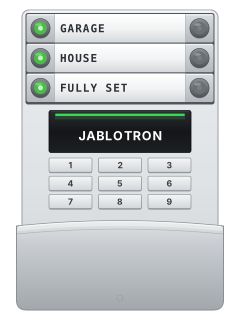
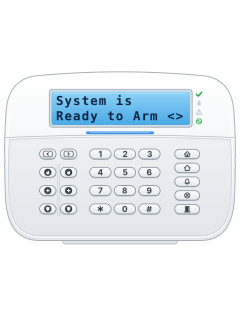
Keypad with control segments

Jablotron 100 manuals
Start hereja-100plus userUser guide · 26 pages · 1.3 MBRead it nowKeypad cheat sheet
Arm (away)your code*
- Segment keypad: enter your code, then press the section’s right-hand button. If it turns yellow, press again for red.
- JA-110E/JA-150E: enter your code, then press [*] (ENT) to open the menu.
- Choose Section Control, select the section and set it fully. Check its indicator turns red.
- Leave before the exit delay ends. A flashing red section button may mean an open detector; close it first.
- For the JA-123E outdoor keypad, use its own guide; our manuals do not confirm its padlock-button sequence.
Pages 8, 11 to 15, 17 of the ja-100plus userPages 4, 44, 46 to 48, 69 of the JA-107K, JA-103K and JA-103K-7Ah Control Panels Installation ManualIndicator flashing green Your code or card is accepted: choose a section Section button steady red That section is set Section button steady yellow That section is part set Indicator flashing yellow A section didn't set Arm while homeyour code*
- Partial setting works if your installer has turned it on.
- Segment keypad: with the section unset, enter your code and press its right-hand button once. It turns yellow.
- JA-110E/JA-150E: enter your code, press [*] (ENT), then choose Section Control.
- Select the section and set it partially. Check its indicator turns yellow.
- For partial setting on the JA-123E, use its own guide; our manuals do not confirm its button sequence.
Pages 8, 12 to 14, 16 and 17 of the ja-100plus userPage 47 of the JA-107K, JA-103K and JA-103K-7Ah Control Panels Installation ManualSection button steady yellow Part set Section button steady red Fully set Disarmyour code*
- Indoor keypads sound during entry delay; the section flashes green on segments, red on JA-110E/JA-150E.
- Segment keypad: enter your code or present your card/tag, then press each section’s left-hand button. It turns green.
- JA-110E/JA-150E: enter your code, press [*] (ENT), then choose Section Control and unset the section.
- If your installer enabled it, your code alone unsets the section whose entry delay is running.
- For the JA-123E, use its own guide; our manuals do not confirm its unset-button sequence.
Pages 8, 11, 13 and 14, 16 of the ja-100plus userPages 4, 44, 47 of the JA-107K, JA-103K and JA-103K-7Ah Control Panels Installation ManualSection button flashing green (red on a JA-110E or JA-150E) Entry delay: key in your code Indicator flashing green Your code or card is accepted Section button steady green That section is unset Bypass a zonemaster code*
- On the pictured segment or outdoor keypad, use the app. JA-110E/JA-150E: [*] is ENT. Use the administrator code.
- Jablotron calls this blocking a detector. Only the administrator or service technician can do it.
- Key in that code and open the menu. Go to Settings, then Devices, pick the detector and set Bypass to Yes.
- It raises no alarms, but its tamper and service reports still work. Undo it the same way.
Alarm memoryyour code*
- Segment keypad: enter your code and press the section’s left-hand button to stop the alarm and unset.
- To clear segment alarm memory, authorise again and press its green button. Setting the section again also clears it.
- JA-110E/JA-150E: enter your code, press [*] (ENT), then choose Event Memory to see what happened.
- After stopping the alarm, choose Cancel warning indication in the menu to clear its reminder.
- Check for danger before entering after an alarm. For JA-123E alarm memory, use its own guide.
Pages 8, 12 to 14, 17, 23 of the ja-100plus userPages 47 and 48 of the JA-107K, JA-103K and JA-103K-7Ah Control Panels Installation ManualSegment button flashing red fast An alarm, or the alarm memory after it JA-110E or JA-150E button flashing green and red Alarm memory Indicator flashing red, 2 flashes every 2 seconds Alarm memory Panic alarm
- This only works if your installer has set up a segment (or a JA-110E or JA-150E function button) for panic, fire or medical help.
- Press that segment's right-hand button, or that function button.
- Fire and medical segments flash red for 3 seconds first: press the left button in that time to cancel.
- Forced to unset? On a JA-103K or JA-107K, add 1 to the last digit of your code (5678 becomes 5679; 9 becomes 0), if your installer has turned it on.
- On an older JA-101K or JA-106K with prefix codes, swap the digit pairs instead (1*5678 becomes 1*7856). Either way it unsets and sends a silent panic.
Pages 7, 12, 17 of the ja-100plus userPages 47, 56, 69 of the JA-107K, JA-103K and JA-103K-7Ah Control Panels Installation ManualSilent panic A report goes out, with no siren Audible panic The alarm sounds Fire or medical segment flashing red 3 seconds to cancel with the left button Change a codemaster code*
- On the pictured segment or outdoor keypad, use J-Link or the app. JA-110E/JA-150E: [*] is ENT.
- Without prefix codes, only the administrator or service technician can change codes. Key in that code and open the menu.
- Go to Settings, Users, pick the user, then Code. Press ENTER and the code flashes.
- Key in the new code and press ENTER again. When it asks 'Save Settings?', choose Save.
- With prefix codes (such as 1*5678), your installer can let users change their own code the same way.
Trouble lights
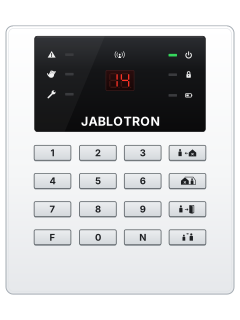
- On a segment keypad the indicator button shows the whole system and each segment's buttons its section; a JA-110E or JA-150E has a system indicator and A to D lights.
- Steady yellow means a fault. After your code, Faults in System in the LCD menu lists which detector.
- Common faults: mains off over 30 minutes, low backup battery, lost network or mobile signal, reports not reaching the monitoring centre.
- Flashing yellow and repeated long beeps: a section didn't set. Cancel warning indication in the LCD menu clears it; on some set-ups, so does setting it again.
- Our manuals don't cover the lights of the JA-123E outdoor keypad: see its own guide.
Pages 8, 10, 13 and 14, 16 of the ja-100plus userPages 37, 43, 48, 58 and 59 of the JA-107K, JA-103K and JA-103K-7Ah Control Panels Installation ManualIndicator steady green Everything is OK Indicator steady yellow A fault somewhere in your sections Indicator flashing green Your code is accepted: choose what to do Indicator flashing yellow A section didn't set (unsuccessful setting) Indicator flashing red An alarm, or alarm memory Indicator green, 2 flashes every 2 seconds Maintenance mode Section button steady red, yellow or green Set, part set or unset Section button flashing green (red on a JA-110E or JA-150E) Entry delay running: key in your code
Why is my keypad beeping or showing a trouble light?
Most keypads beep or light up a trouble indicator when something needs attention, such as a low backup battery, a power cut or a lost phone or internet connection. Your user guide explains what each light or code means on your model. If it keeps happening, or you are not sure, call your installer or monitoring company.
All Jablotron 100 manuals
User guides 1
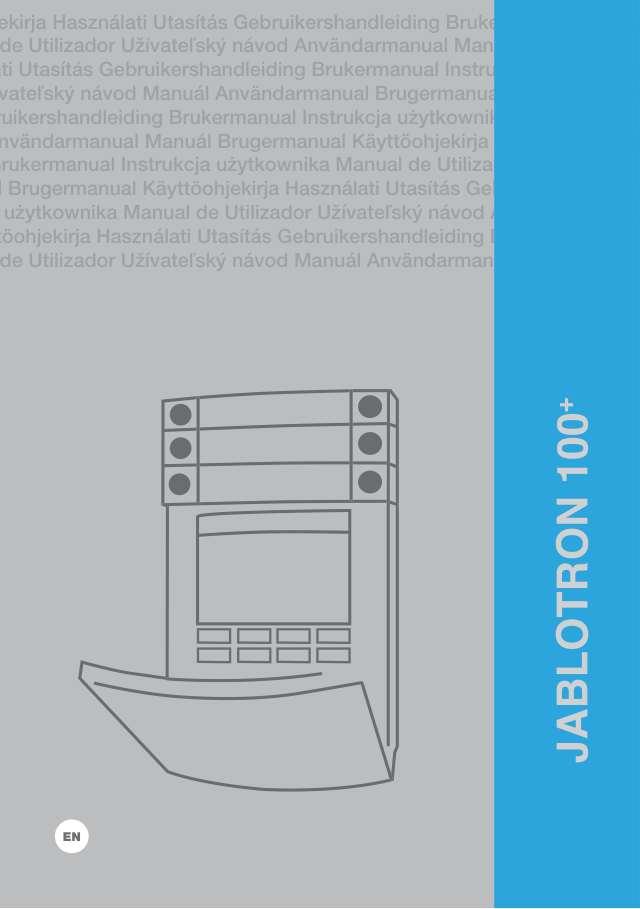
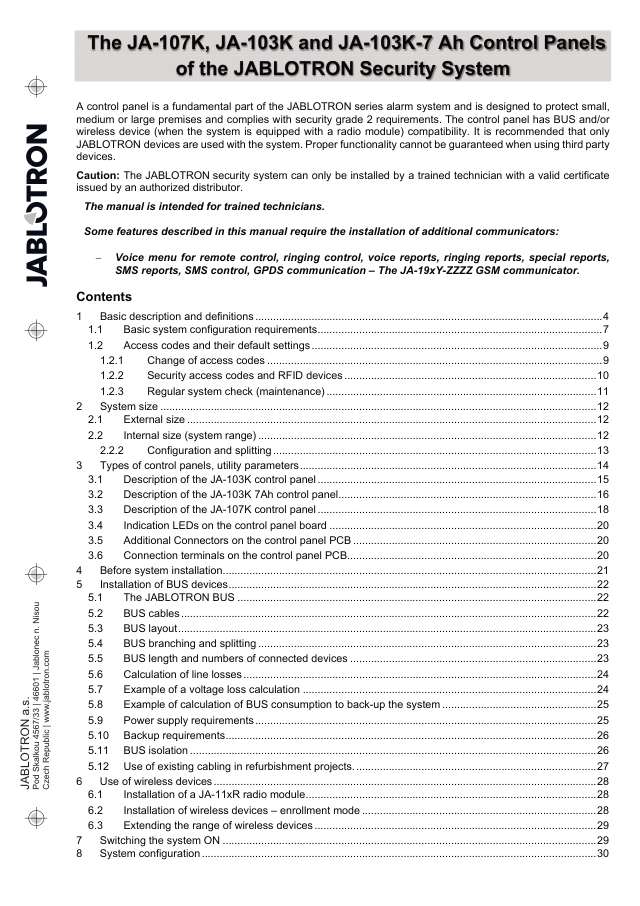
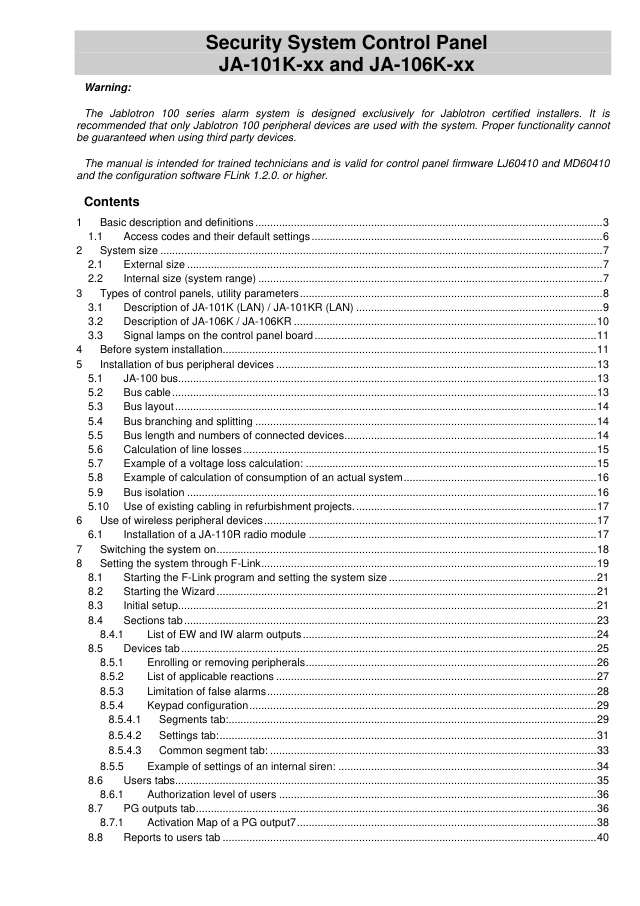
Installer manuals 3
Nothing here matches that.
Try a shorter search, or search every brand.
More Jablotron models
Is anyone watching your alarm?
An alarm that only makes a noise relies on someone hearing it. A monitored alarm reports to our A1 graded, NZSA approved control room, watched 24/7 by a team that is New Zealand owned and operated. We can monitor most existing alarms, so you may not need a new one. Thinking about a new alarm or security cameras? Ask us for a quote.
Prefer to talk now? Call us on 0800 339 999.
Home: alarm monitoringBusiness: business monitoringInstaller: bureau monitoring

Manuals are the property of their manufacturers and are provided for reference only; their inclusion here does not imply any endorsement by the manufacturer.