
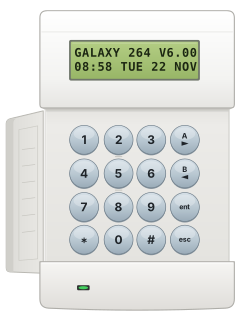
Mk7Keypad

Ademco Galaxy manuals
Start hereGalaxy Flex V3 User GuideUser guide · 32 pages · 242 KBRead it nowKeypad cheat sheet
Arm (away)your codeA
- Close doors and windows. It won't set if an earlier alarm hasn't been reset.
- Key in your PIN, then press [A]. The exit time counts down on screen and a steady tone sounds.
- Leave by your usual route and close the door. Two tones a few seconds after the exit time confirm it's set.
- To stop setting, press [esc] at the same keypad. At another keypad, key in your PIN and press [ent].
- A fault shown with Continue Set can be overridden with [ent] for this one setting, if your code is allowed.
Arm while homeyour codeB
- Galaxy calls this Part Set. It leaves out the detectors agreed with your installer.
- Key in your PIN, then press [B]. The exit time starts; your installer may have made it silent.
- Move out of the protected area. A double beep at the end confirms it's set.
- A tag or card can only set the whole system, never part.
Disarmyour codeentoryour codeA
- Come in by your usual entry route. A pulsing tone sounds while the entry time runs.
- Galaxy Flex: key in your PIN, then press [ent]. The Dimension manual says your PIN, then [A].
- A tag held to the reader, or the keyfob's unset button, also unsets.
- After an alarm, your PIN stops the sirens and shows what went off. [A] and [B] scroll through them.
- Only some codes can reset the system after an alarm. If yours can't, the screen asks for the manager or engineer.
Bypass a zoneyour codeent11entthen#ent
- Each detector or door contact is a zone. Galaxy calls bypassing omitting, and an omit lasts for one setting.
- Key in your PIN, press [ent], then [1] [1] [ent] for Omit Zones. Only zones that may be omitted are shown.
- Scroll to the zone with [A] or [B], then press [#]: the screen shows Omitted. [#] again puts it back.
- Press [ent] to start setting now, or [esc] to keep the omits for when you next set.
- Galaxy Dimension: ordinary codes open a short menu, where Omit Zones is [0] instead of [1] [1].
Alarm memoryyour codeent22ent
- Key in your PIN, press [ent], then [2] [2] [ent]. The event log opens at the newest event.
- [B] steps back in time and [A] forward. Hold either key to move a day at a time.
- Press [#] for more detail on an event, and [esc] to leave.
- If your code allows it, Trace ([4] [4] [ent]) keeps the latest alarm and the first five events during it.
- Galaxy Dimension: ordinary codes open a short menu, where the log is [4] instead of [2] [2].
Panic alarm*+2
- Galaxy Flex: press [*] and [2] together for a personal attack alarm.
- [*] and [5] together sends an emergency alarm, and [*] and [8] a fire alarm.
- These hot keys work only if your installer has turned them on.
Change a codeyour codeent42ent1entthenententnew codeent
- Key in your PIN, press [ent], then [4] [2] [ent] [1] [ent]. The first user shows.
- Pick the user with [A] or [B], or type their 3-digit user number. Press [ent]: Modify PIN shows.
- Press [ent], key in the new 4, 5 or 6-digit PIN, then press [ent] to accept it.
- Users can change only their own PIN; changing others needs a manager code. A Flex comes with a factory user PIN: change it.
- Galaxy Dimension: ordinary codes open a short menu, where Codes is [8] instead of [4] [2].
Set the date and timeyour codeent41entthenAtimethenBdate
- Key in your PIN, press [ent], then [4] [1] [ent]. The screen offers A = TIME and B = DATE.
- Press [A], then key in the time as 4 digits on the 24-hour clock (1430 for 2:30 pm).
- Press [B], then key in the date as 6 digits: day, month, year.
- Each entry is taken as soon as it's complete. Only a manager-level code can set the clock.
Test the systemyour codeent31ent2ent2ent1ent
- Leave wireless detectors undisturbed for 3 minutes first.
- Key in your PIN, press [ent], then [3] [1] [ent] for Walk Test. Then [2] [ent] [2] [ent] [1] [ent] starts Test All Zones.
- Walk past each detector and open each door. The inside sounders beep twice and the screen names the zone.
- Press [esc] to finish. The tested zones are saved in the event log.
- Galaxy Dimension: ordinary codes open a short menu, where Walk Test is [6] instead of [3] [1].
Trouble lightsyour code
- A fault while the alarm is off makes the keypad beep on and off.
- Key in your PIN. The screen shows the cause: scroll with [A] and [B].
- Once it has cleared, press [ent] or [esc] to reset it. If it won't clear, ring your installer.
- The table gives Galaxy Dimension screen messages. A + in front means it has started; a - means it has ended.
Page 13 of the Galaxy Flex V3 User GuidePages 81, 192, 287 to 289 of the Galaxy Intruder DimensionCU-AC or AC FAIL Mains power has failed CU-BATT or BATT LOW The standby battery is low AC+BATT No mains power, and the battery is low LINE FAIL or COMM LINE FAIL The line the panel reports over (such as the phone line) has failed COMM FAIL The panel had a communication failure LID TAMP The control panel lid's tamper has gone off BELL TAMP The bell's tamper has gone off FAULT A fault on a zone Send a test signalyour code*+0
- Galaxy Flex: the comms test checks the panel can get through to your monitoring centre.
- Key in your PIN, then press * and 0 together. The keypad shows whether it worked or failed.
- Galaxy Dimension: its manual keeps this test in the engineer's menu, so ask your installer.
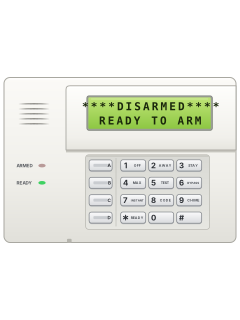
Why is my keypad beeping or showing a trouble light?
Most keypads beep or light up a trouble indicator when something needs attention, such as a low backup battery, a power cut or a lost phone or internet connection. Your user guide explains what each light or code means on your model. If it keeps happening, or you are not sure, call your installer or monitoring company.
All Ademco Galaxy manuals
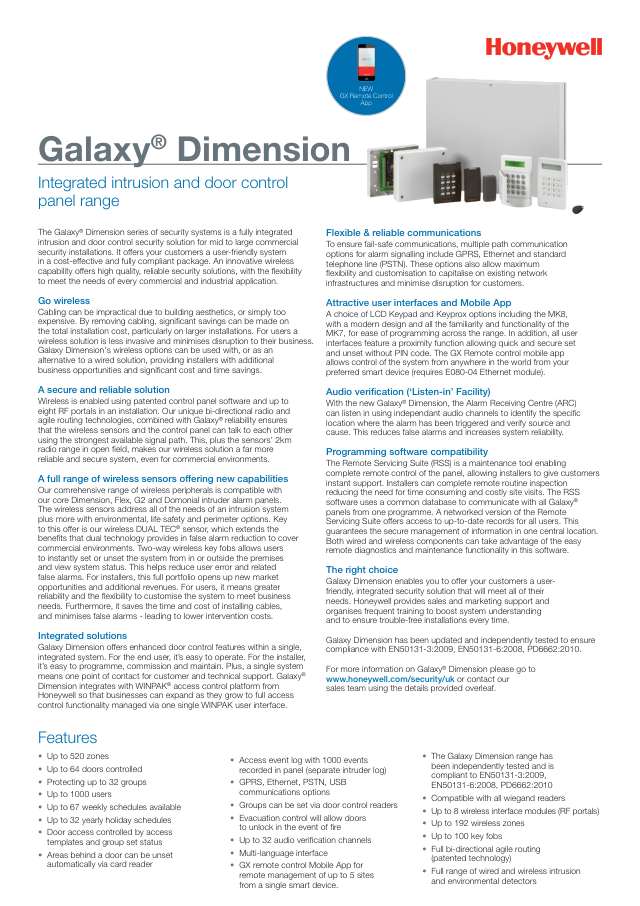
User guides 1
Installer manuals 5
Nothing here matches that.
Try a shorter search, or search every brand.
More Ademco models
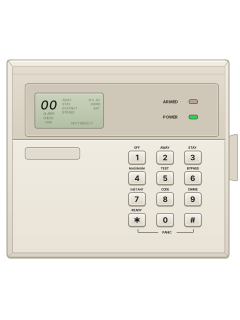
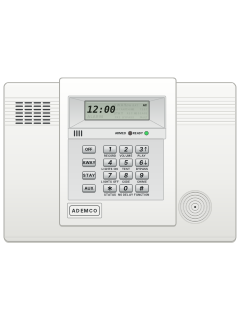
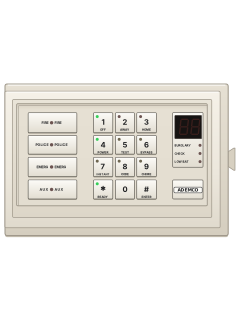
Is anyone watching your alarm?
An alarm that only makes a noise relies on someone hearing it. A monitored alarm reports to our A1 graded, NZSA approved control room, watched 24/7 by a team that is New Zealand owned and operated. We can monitor most existing alarms, so you may not need a new one. Thinking about a new alarm or security cameras? Ask us for a quote.
Prefer to talk now? Call us on 0800 339 999.
Home: alarm monitoringBusiness: business monitoringInstaller: bureau monitoring
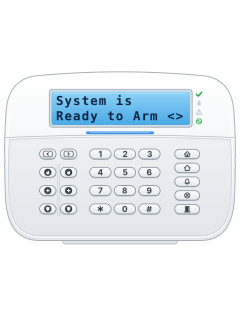

Manuals are the property of their manufacturers and are provided for reference only; their inclusion here does not imply any endorsement by the manufacturer.