
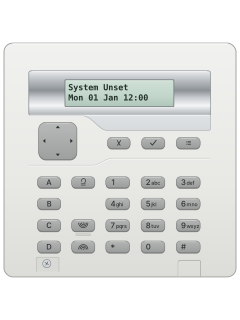
KEY-K01i-on LCD keypad
Scantronic i-on manuals
Start hereEaton i-on Series Administration and User Manual 13392068 v3.0User guide · 63 pages · 1.0 MBRead it nowKeypad cheat sheet
Arm (away)your codeA
- Close doors and windows. Key in your code. A keypad with a tag reader (the KEY-K01 has none) also takes your tag, held near its front.
- Press A for Full Set. If your installer has turned on quick set, A works without a code.
- Unless silent setting is enabled, the exit tone sounds as the screen counts down. A broken tone means the exit door is open.
- Leave and close the door. A double beep and 'System Set' tell you the alarm is on.
- An i-on Compact, 30R+ or 40H+ may list Setting Options instead: pick Full Set with the up and down arrows, then press the tick key (✓).
Arm while homeyour codeB
- i-on calls this Part Set. Your installer picks the zones it covers, such as downstairs while you sleep upstairs.
- Key in your code, then press B. Some systems also have part sets C and D. Tags need a reader-equipped keypad; the KEY-K01 has none.
- The exit tone sounds unless silent setting is enabled. A double beep confirms it has set.
- To go between part set and full set, unset the alarm first.
Disarmyour code
- Come in by your usual entry door and go straight to the keypad. The entry tone sounds.
- Key in your code. The tone stops and System Unset shows. A tag also works on reader-equipped keypads; the KEY-K01 has no reader.
- If the siren is going, your code stops it. The screen shows the first zone that went off.
- Press the tick key (✓) to reset. The keypad goes back to normal, ready to set again.
- On software 6 panels, Call Installer or Call ARC means ring them to reset it. You can still set and unset meanwhile.
Bypass a zonethe key with three lines on ityour codethe key with a tick on it
- Each detector or door contact is a zone. i-on calls bypassing omitting: the zone is ignored for one setting.
- On the KEY-K01, press the menu key (list picture), then enter your code. Open Omit Zones with the tick key (✓) or right arrow.
- Scroll to the zone with the up and down arrows, then press the right arrow. An O at the end of the line means omitted.
- Press the right arrow again to put it back (I). Press the tick key to save.
- You can omit only the zones your installer allows. They go back to normal when you unset.
Pages 1, 4 of the Scantronic i-on Quick User Guide 12343532Page 18 of the Scantronic i-on16 User Guide 11847976O beside a zone The zone will be omitted for one setting I beside a zone The zone is included Alarm memoryyour code
- After an alarm, key in your code. The screen shows the first zone that set it off.
- Siren already stopped? After your code, the lights round the arrow keys glow red. Press the right arrow for the details.
- For the full history, press the menu key (≡), key in your code, press the down arrow until View Log, then the tick key (✓).
- The down arrow shows older events and the up arrow newer ones. The right arrow gives more detail; the cross key (✗) finishes.
Chime on or offthe key with three lines on ityour code
- Chime is a tone when a zone is triggered while the alarm is off. Your installer picks which zones chime.
- On the KEY-K01, press the menu key (list picture), then enter your code. Open System Config, then Facilities On/Off.
- Scroll with the up and down arrows; the tick key (✓) or the right arrow opens an item.
- At Chime, press the right arrow until it shows the setting you want, then press the tick key.
Pages 28, 31 of the Scantronic i-on16 User Guide 11847976Pages 1, 4 of the Scantronic i-on Quick User Guide 12343532Chime On Chime is enabled for the zones your installer selected Chime Off Chime is disabled Panic alarm
- On the KEY-K01, press the two keys with wave pictures, beside C and D, at the same time.
- It works only if your installer has turned it on.
- The siren gives a loud warbling tone.
- Newer i-on guides call it a Hold Up Alarm (HUA).
Pages 6, 14 of the Scantronic i-on16 User Guide 11847976Page 24 of the Eaton i-on Series Administration and User Manual 13392068 v3.0Two wave-picture keys beside C and D The keypad panic buttons; press together if your installer has enabled them Change a codethe key with three lines on ityour code
- On the KEY-K01, press the menu key (list picture), then enter your code. Go to Users, then Edit User, and pick the user.
- Choose Code. Key in the new code, then key it in again when the screen asks.
- Codes are 4 digits (4 or 6 on newer panels, as your installer sets). Every user's code must be different.
- Not a master user? The Users menu may offer Code, which changes only your own code.
- Software 6 panels change only your own code this way. For someone who forgot theirs, delete and re-add them.
Pages 18 to 20 of the Scantronic i-on16 User Guide 11847976Pages 8, 31, 35, 38 of the Eaton i-on Series Administration and User Manual 13392068 v3.0Code option Enter the new code twice when prompted Set the date and timethe key with three lines on ityour code
- On the KEY-K01, press the menu key (list picture), then enter your code. Go to System Config, then Set Date & Time.
- Key in the date as day, month, year, then press the tick key (✓).
- Key in the time on the 24-hour clock, then press the tick key.
- An i-on16 doesn't change for daylight saving itself. Software 6 panels do, and may take the time from SecureConnect.
Pages 28 and 29 of the Scantronic i-on16 User Guide 11847976Pages 31, 49 of the Eaton i-on Series Administration and User Manual 13392068 v3.0Set the date (i-on16) Enter day, month and year Set the time (i-on16) Enter hours and minutes on the 24-hour clock Trouble lights
- With the alarm off, press the tick key (✓), then key in your code. The screen shows the latest alert.
- The up and down arrows show any others. Press the tick key to acknowledge each one: the beeping stops when none are left.
- The cross key (✗) leaves the alert for now: it shows again next time you key in your code.
- On software 6 panels, the ring stays red until the fault is fixed, even after the beeping stops.
Page 3 of the Scantronic i-on Quick User Guide 12343532Pages 15 and 16 of the Scantronic i-on16 User Guide 11847976Ring round the arrow keys red, with short beeps An alert, such as a low battery, mains failure or communications fault: see the steps Ring round the arrow keys green No alerts waiting Ring red when you key in your code An alarm went off while you were out. On an i-on16, press the right arrow for details Call Installer or Call ARC (software 6 panels) Ring them to reset it; you can still set and unset meanwhile RESET FAULTS (software 6 panels) A technical alarm detector is still active. Fix it, then acknowledge again; the tick key (✓) carries on meanwhile Send a test signal
- Software 6 panels that report through a GSM or phone-line module can make a test call to your monitoring centre.
- From the standby screen, press the menu key (list picture), then key in a master or admin code.
- With the up and down arrows and the tick key (✓), choose Test, then ARC Reporting.
- Choose one of the two recipients your installer set up, then press the tick key to start the call.
- Ask your monitoring centre whether the test call arrived.
Pages 1, 29, 31, 48 of the Eaton i-on Series Administration and User Manual 13392068 v3.0Test call started... The call is under way; the keypad then shows its progress Call failed The call didn't get through; the reason shows next
Why is my keypad beeping or showing a trouble light?
Most keypads beep or light up a trouble indicator when something needs attention, such as a low backup battery, a power cut or a lost phone or internet connection. Your user guide explains what each light or code means on your model. If it keeps happening, or you are not sure, call your installer or monitoring company.
All Scantronic i-on manuals
User guides 3
Installer manuals 1
Nothing here matches that.
Try a shorter search, or search every brand.
More Scantronic models
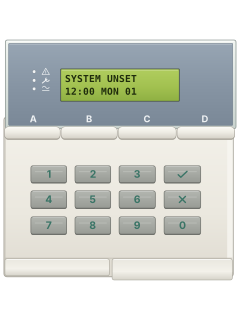
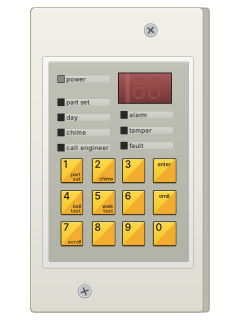
Is anyone watching your alarm?
An alarm that only makes a noise relies on someone hearing it. A monitored alarm reports to our A1 graded, NZSA approved control room, watched 24/7 by a team that is New Zealand owned and operated. We can monitor most existing alarms, so you may not need a new one. Thinking about a new alarm or security cameras? Ask us for a quote.
Prefer to talk now? Call us on 0800 339 999.
Home: alarm monitoringBusiness: business monitoringInstaller: bureau monitoring
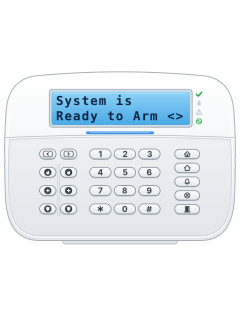

Manuals are the property of their manufacturers and are provided for reference only; their inclusion here does not imply any endorsement by the manufacturer.