
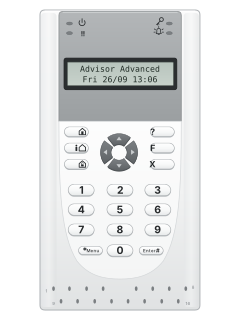
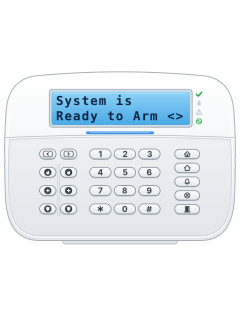
ATS111xA Advisor Advanced / Axon LCD keypad
Aritech Advisor Advanced manuals
Start hereAdvisor Advanced ATSx000A User GuideUser guide · 36 pages · 698 KBRead it nowKeypad cheat sheet
Arm (away)your codethe key with a house with a person in it on itorthe key with a house with a person in it on ityour codeEnter
- Close all doors and windows. Advisor calls arming setting.
- Key in your PIN, then press the full set key: a person beside a house (see the table). Some systems take that key first, then your PIN and Enter.
- If a list of areas shows, press an area's number to pick it, then Enter. With none picked, Enter sets them all.
- The exit tone sounds. Leave by your usual exit route. The area light turns red once it's set.
- CHECK SYSTEM and Devices open mean a zone is open. Press X to stop, close it, and try again.
Pages 7, 13 to 16, 19, 33 of the Advisor Advanced ATSx000A User GuidePerson beside a house Full set (arm) Top house key Part set Padlock on a house Unset (disarm) Arm while homeyour codethe key with a house on itorthe key with a house on ityour codeEnter
- Advisor calls this Part set: it arms part of the site while you stay, such as the doors and windows at night.
- Key in your PIN, then press the top house key. Or press that key first, then your PIN and Enter.
- If asked, choose Part set 1 or 2, then the areas.
- The area light turns red when it's part set.
Pages 7, 13, 17, 33 of the Advisor Advanced ATSx000A User GuidePerson beside a house Full set (arm) Top house key Part set Padlock on a house Unset (disarm) Disarmyour codethe key with an open padlock on itorthe key with an open padlock on ityour codeEnter
- Come in by your usual entry route. An entry tone sounds and the screen asks for your card or code.
- Key in your PIN, then press the unset key: a padlock on a house. Depending on setup it may be that key, PIN, Enter, or your PIN alone.
- If asked, choose the areas. The entry tone stops and the area lights go out.
- Unsetting also stops an alarm. Any alarms are then listed: press the unset key to acknowledge each one, if you're allowed.
- If your system uses duress, a duress code (such as your PIN with the last digit one higher) sends a silent alarm.
Pages 7, 11, 14, 17, 22, 33 of the Advisor Advanced ATSx000A User GuidePerson beside a house Full set (arm) Top house key Part set Padlock on a house Unset (disarm) Bypass a zoneMenuyour codeEnter11
- Each detector or door contact is a zone. Inhibiting ignores it until the next unset. Press Menu, your PIN, Enter, then 1, 1.
- If all zones are closed: key in the zone number, use the up or down arrow to choose Inhibited, then Enter. X twice leaves.
- If open zones are listed: use the up or down arrow to find the zone, then Enter to inhibit it. X leaves.
- While setting instead: at Devices open, the unset key (padlock on a house) inhibits the listed zone, if allowed.
- When you next set, a warning lists inhibited zones. Press Enter to carry on.
Alarm memoryEnterEnter
- After you unset, any alarms are listed: first the type of alarm, then the zone.
- Press the unset key (a padlock on a house) to acknowledge each one. A counter shows how many are left.
- An alarm can't be acknowledged while its cause is still there, such as a tampered zone.
- Press [Enter] twice to see alarms that happened while set, if your manager allows it.
- Alarms not acknowledged come up again at the next set or unset.
Panic alarm1+3
- Press [1] and [3] together.
- It works only if your manager or installer has turned it on.
Change a codeMenuyour codeEnter5Enterthennew code
- Press [Menu], key in your PIN and press [Enter] (or your PIN, then [Menu]). Press [5] for PIN.
- Change PIN shows. Press [Enter], key in the new PIN, then key it in again to confirm.
- On some systems the panel makes up the new PIN itself when you press [Enter], and shows it.
- PINs are 4 to 10 digits, and no two users can share one. You can change it only if your account allows.
Test the systemMenuyour codeEnter82
- Press [Menu], key in your PIN and press [Enter], then [8] [2] for Walk test.
- Choose Total, the standard test, and press [Enter]. The zones to test are listed.
- Walk past each detector and open each door and window. Each zone drops off the list once triggered.
- Walk test OK means it passed: press [Enter]. If zones stay on the list, ring your installer.
Trouble lightsFF
- A local alarm, such as a fire door opening, makes the keypad beep until someone acknowledges it at the keypad.
- Press the unset key (a padlock on a house) to acknowledge it, if you're allowed. An alarm can't be acknowledged while its cause is still there.
- Press [F] twice to list active zones and faults that need acknowledging, if your manager has enabled this.
- Or press [Menu], key in your PIN, press [Enter], then [4] for Panel status: open zones, alarms and faults.
- After 3 wrong PINs the keypad locks for 2 minutes: any key then gives seven beeps.
Pages 7 and 8, 15, 21 to 23, 29, 34 of the Advisor Advanced ATSx000A User GuideGreen power light on Mains power is on Yellow fault light on A system fault is active Yellow fault light flashing A general alert Red alarm light on An alarm is active Area light on That area is set Area light flashing An alarm in that area CHECK SYSTEM, Faults on the display A fault is stopping the system setting
Why is my keypad beeping or showing a trouble light?
Most keypads beep or light up a trouble indicator when something needs attention, such as a low backup battery, a power cut or a lost phone or internet connection. Your user guide explains what each light or code means on your model. If it keeps happening, or you are not sure, call your installer or monitoring company.
All Aritech Advisor Advanced manuals
Nothing here matches that.
Try a shorter search, or search every brand.
More Aritech models
Is anyone watching your alarm?
An alarm that only makes a noise relies on someone hearing it. A monitored alarm reports to our A1 graded, NZSA approved control room, watched 24/7 by a team that is New Zealand owned and operated. We can monitor most existing alarms, so you may not need a new one. Thinking about a new alarm or security cameras? Ask us for a quote.
Prefer to talk now? Call us on 0800 339 999.
Home: alarm monitoringBusiness: business monitoringInstaller: bureau monitoring

Manuals are the property of their manufacturers and are provided for reference only; their inclusion here does not imply any endorsement by the manufacturer.