

Arrowhead ESL-2 manuals
Start hereESL-2 Operating GuideUser guide · 24 pages · 981 KBRead it nowKeypad cheat sheet
Arm (away)ARMoryour codeENTER
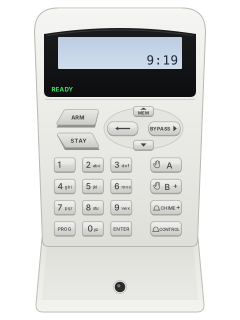
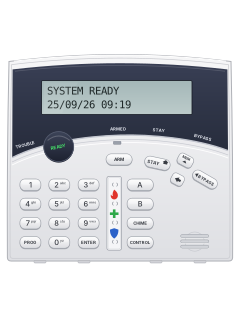
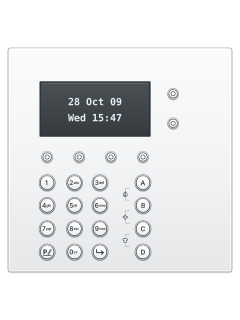
- KP-ICON or KP-LCD keypad: press [ARM] (top left). 'ARMED' shows and the exit beeps start.
- Or key in your code and press [ENTER]. Leave before the exit beeps stop.
- KP-TOUCH: tap the 'ARM' lock icon on the home screen. A red lock icon shows and the exit beeps start.
- Use the user code your installer gave you.
- Two areas and an [ARM]-first set-up: [ARM], your code, [ENTER], then [1] or [2] to leave an area out, and [ENTER].
Arm while homeSTAY
- Stay arming sets only part of the system, such as the garage or downstairs, as your installer set it up.
- Press [STAY] (top left). The exit beeps start and 'STAY' flashes on the screen.
- If your installer gave you a stay code, key it in and press [ENTER] instead.
- KP-TOUCH: tap the 'STAY' house icon. It shows yellow and the exit beeps start.
Disarmyour codeENTER
- Key in your code and press [ENTER]. The ARMED or STAY light goes out.
- KP-TOUCH: tap the red ARMED or yellow STAY ARMED icon, key in your code and tap 'ENTER'. A triple beep means done.
- Two areas and an [ARM]-first set-up: after your code and [ENTER], press [1] or [2] to keep an area armed, then [ENTER].
Alarm memoryMEM
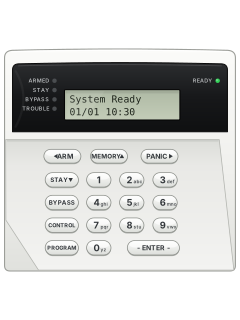
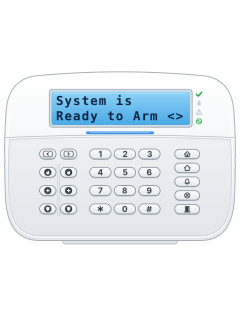
- KP-LCD: press [MEM] (the up arrow). 'Current Faults' shows first.
- Keep pressing [MEM] until the date and time show. Each press then steps back through the history.
- KP-ICON: keep pressing [MEM] until the caution icon stops flashing and stays on. You're then in the history.
- Press [ENTER] to leave. The panel keeps the last 255 events.
- KP-TOUCH: tap 'Service', then 'History', then the arrow top right for the full list.
Chime on or offholdCHIMEorCONTROL+PROGRAM
- Chime zones beep the keypad when they open. Your installer sets them up.
- Keypad with a CHIME key: hold [CHIME] for 2 seconds. The screen shows 'Chime Mode OFF'.
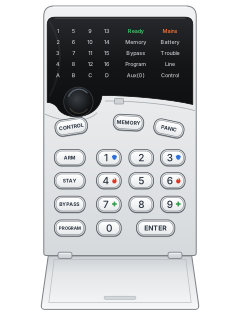
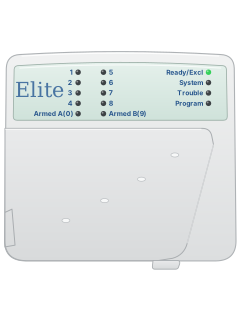
- LED keypad: hold [CONTROL] and press [PROGRAM] within 2 seconds. The Aux (0) light comes on while chime is off.
- Do the same again to turn chime back on.
Panic alarmCHIME+CONTROLorPANICor1+3
- KP-ICON or KP-LCD: press [CHIME] and [CONTROL] together for a panic alarm.
- [A] and [B] together send a fire alarm; [B] and [CHIME] a medical alarm.
- LED and AAP LCD keypads use a [PANIC] key, or [1] and [3], [4] and [6], and [7] and [9].
- The two-key alarms are off until your installer turns them on. The [PANIC] key works from the factory, or with a 2-second hold if set.
Change a codePROGmaster codeENTERthenPROG1ENTERuser numberENTERnew codeENTER
- Only user code 1 can get into client programming. Press [PROG], your code, then [ENTER].
- KP-ICON shows CPGM, KP-LCD 'Client: Users'. Press [PROG], [1], [ENTER], the user number (1 to 100) and [ENTER].
- Key in the new code and press [ENTER]. To delete the code instead, press [CONTROL] and [0] together, then [ENTER].
- To finish: KP-ICON, [PROG] then [ENTER]. KP-LCD, press [PROG] until 'Enter To Exit' shows, then [ENTER].
- KP-TOUCH: 'Settings', 'My Settings', your code, then '1. User Codes'.
Set the date and timePROG26ENTER1ENTERtimeENTER
- KP-TOUCH: 'Settings', 'My Settings', your code, then '2. Clock Settings'. Other keypads: [PROG], your code, [ENTER].
- Time: [PROG], [2], [6], [ENTER], then [1], [ENTER]. Key in the 24-hour time as HHMM and [ENTER].
- Day: [PROG] 26 [ENTER], [2] [ENTER], then the day number (1 = Sunday) and [ENTER].
- Date: [PROG] 26 [ENTER], [3] [ENTER], then the date as DDMMYY and [ENTER].
- To finish: KP-ICON, [PROG] then [ENTER]. KP-LCD, press [PROG] until 'Exit Programming' shows, then [ENTER].
Test the systemCONTROL+0
- This sends a manual test call to your monitoring company. It works if your panel is set up to report tests.
- Hold [CONTROL] and press [0] within 2 seconds.
Trouble lightsMEM
- KP-ICON or KP-LCD: the red TROUBLE light means a fault. Press [MEM] (the up arrow) to see it.
- KP-LCD shows the fault or 'No Faults'. KP-ICON shows a short code (see the table) or 'NONE'.
- KP-TOUCH: a red code shows top left. Tap 'Service', then 'History'.
- If your installer turned it on, a mains, battery, fuse, phone line or wireless receiver fault beeps the keypad non-stop.
- KP-ICON or KP-LCD: [ENTER] silences it, and it stops once the fault clears. A panel tamper beeps until a valid code clears it.
Pages 17 and 18 of the ESL-2 Operating GuidePage 72 of the Installation & Programming Guide ESL-2 Version (E.V)AC No mains power at the panel BATT Backup battery low or missing CF Call failure: no reply from monitoring or the app LINE The panel can't communicate KPSA A keypad is missing OPFS The panel's 12 V output fuse has failed, maybe a short ZBAT / PBAT A wireless sensor's / remote's battery is low ZSUP A wireless sensor has stopped checking in
Why is my keypad beeping or showing a trouble light?
Most keypads beep or light up a trouble indicator when something needs attention, such as a low backup battery, a power cut or a lost phone or internet connection. Your user guide explains what each light or code means on your model. If it keeps happening, or you are not sure, call your installer or monitoring company.
All Arrowhead ESL-2 manuals
User guides 1
Installer manuals 6
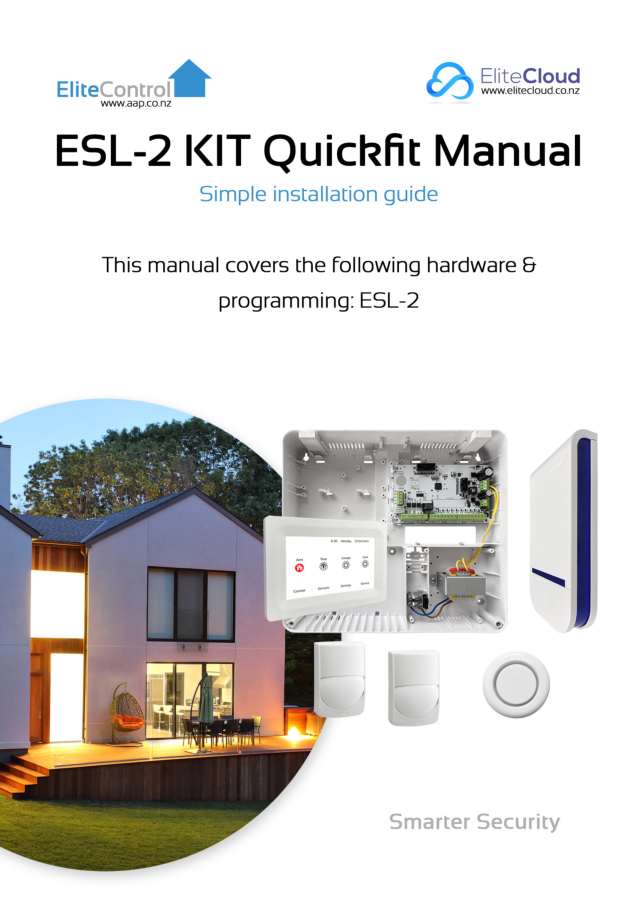
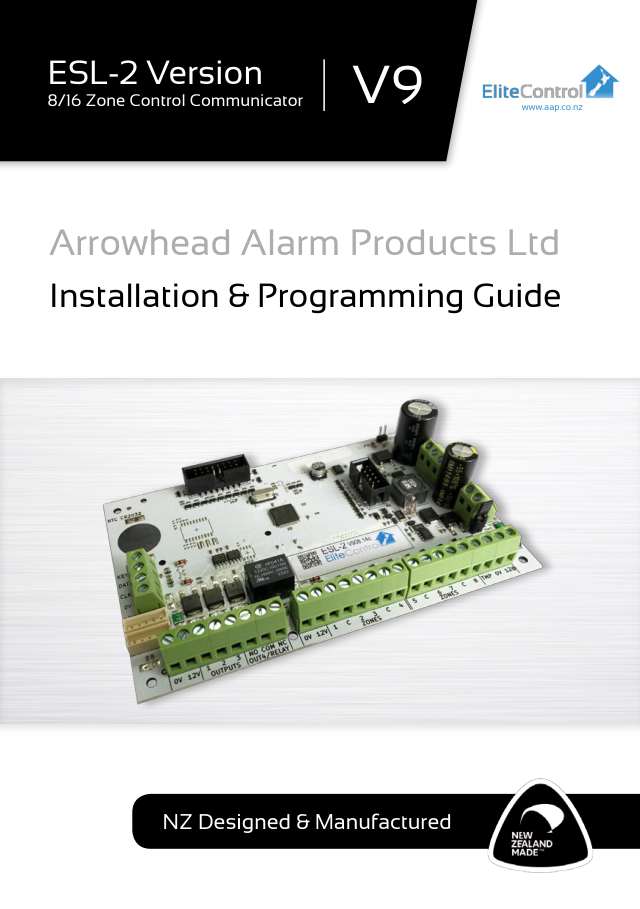
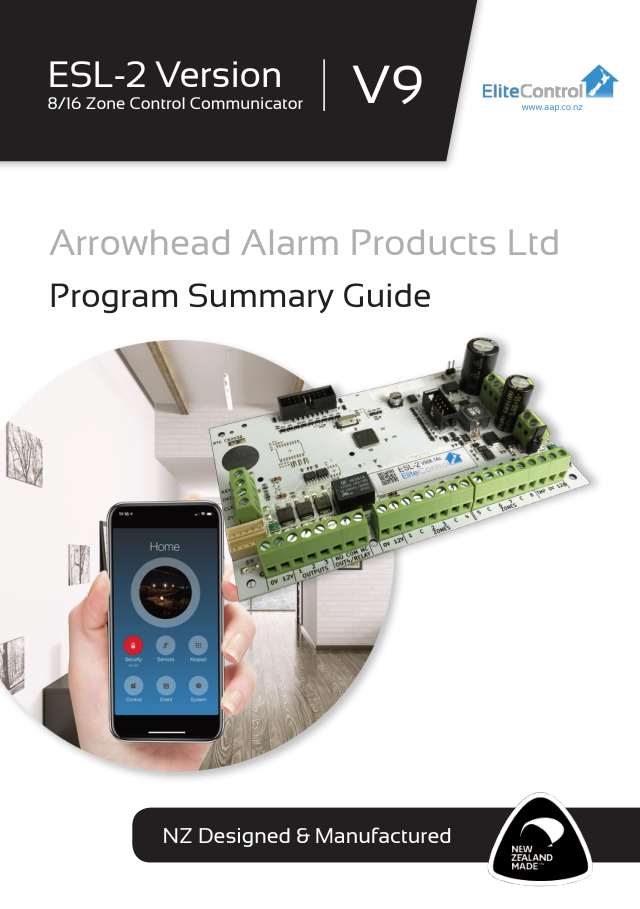
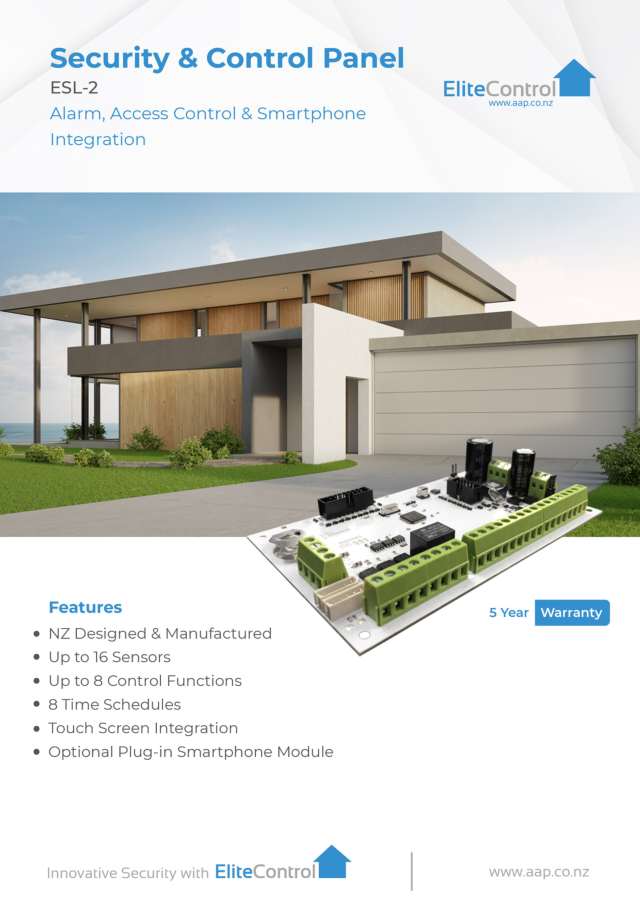
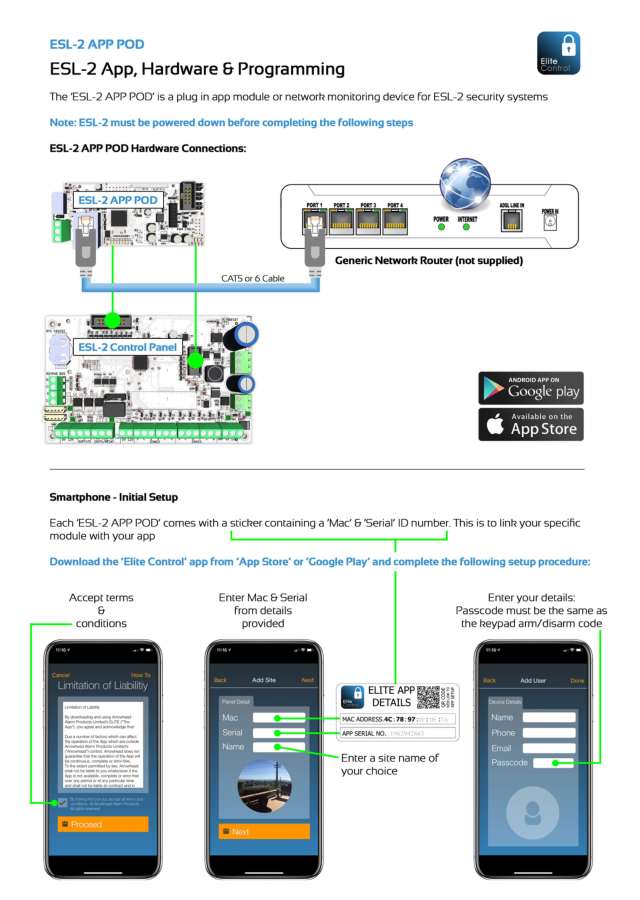
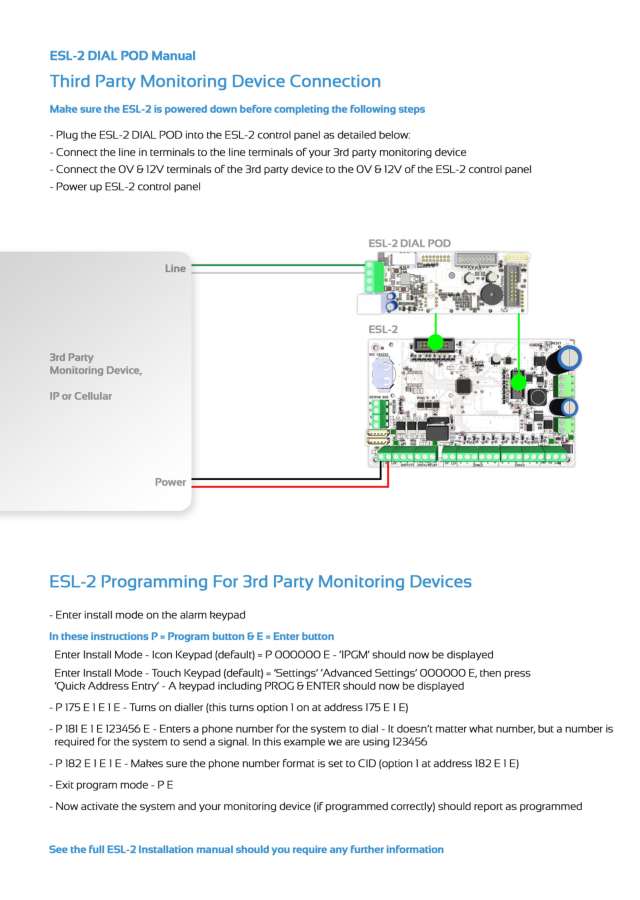
Nothing here matches that.
Try a shorter search, or search every brand.
More Arrowhead models
Crow wide LCD keypad (PowerWave CR16M)
Keypads
8 manuals
Also fitsElite V8 / V6 Powerwave, 15 manualsElite 16D / 64, 7 manuals
Is anyone watching your alarm?
An alarm that only makes a noise relies on someone hearing it. A monitored alarm reports to our A1 graded, NZSA approved control room, watched 24/7 by a team that is New Zealand owned and operated. We can monitor most existing alarms, so you may not need a new one. Thinking about a new alarm or security cameras? Ask us for a quote.
Prefer to talk now? Call us on 0800 339 999.
Home: alarm monitoringBusiness: business monitoringInstaller: bureau monitoring

Manuals are the property of their manufacturers and are provided for reference only; their inclusion here does not imply any endorsement by the manufacturer.