
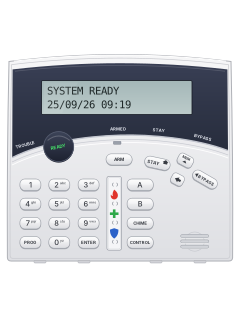
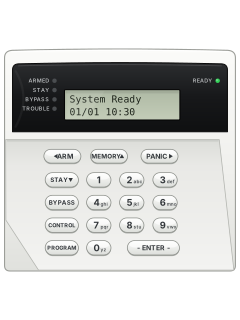
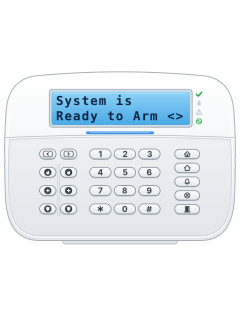
Crow wide LCD keypad (PowerWave CR16M)

Arrowhead Keypads manuals
Start hereLCD User Operating and Programming Guide V1.00User guide · 30 pages · 242 KBRead it nowElite / PowerWave LCD keypads cheat sheet
Arm (away)your codeENTERyour codeARMARM
- On the Crow, close open zones until READY is lit. Bypassed zones are not protected.
- On the Crow, enter your code, then press ENTER. Leave before the exit beeps stop; ARMED lights when the system is set.
- On the Crow, ARM alone works if your installer has turned on Quick Arm.
- AAP landscape LCD/TRX: press ARM if your installer allows arming without a code; otherwise follow your panel guide.
- FreeWave FW: enter your keypad code, then press ARM, if your installer has set up that command.
Arm while homeSTAYyour codeENTERyour codeSTAYSTAY
- On the Crow, Stay arms the perimeter while leaving the interior free for movement, if set up by your installer.
- On the Crow, when READY is lit, press STAY, enter your code, then press ENTER. The STAY light comes on when set.
- On the Crow, STAY alone works if your installer has turned on Quick Stay.
- AAP landscape LCD/TRX: press STAY if your installer allows arming without a code; otherwise follow your panel guide.
- FreeWave FW: enter your keypad code, then press STAY, if your installer has set up that command.
Disarmyour codeENTERyour codeDISARM
- AAP landscape LCD: enter your code, then ENTER. Only the areas your code and keypad cover disarm.
- On the Crow, enter your code, then press ENTER. The screen shows the disarmed areas; this also stops an alarm.
- On the Crow, STAY alone can disarm Stay mode if your installer has turned it on.
- On the Crow, press ENTER to clear a mistaken entry, then start again.
- FreeWave FW: enter your keypad code, then press DISARM, if your installer has set up that command.
Bypass a zoneBYPASSzoneENTER
- These steps are for Crow CR16M on PW4/PW8/PW16. AAP/TRX: use your panel guide; FW cannot bypass zones.
- Each detector or door contact is a zone. A bypassed zone gives no protection; select it before arming.
- Press BYPASS. Enter two digits per zone on PW16, or one digit on PW4/PW8, then press ENTER.
- The screen lists bypassed zones. Repeat the sequence with the same zone number to restore protection.
- On PW8/PW16, disarming clears ordinary bypasses. A bypassed 24-hour zone must be restored manually.
Alarm memoryMEMMEMORY
- FreeWave FW has no event-memory display. TRX uses its own event codes; see its guide.
- On the Crow, press MEM. Events appear newest first, with time and date, advancing every 2.5 seconds with a beep.
- On the Crow, use the arrow keys to scroll manually. Press ENTER to finish.
- On the AAP landscape LCD, press MEMORY; press it again for each older event.
- On the AAP landscape LCD, PANIC and ARM scroll long text right and left. Press ENTER to finish.
Chime on or offholdCHIME
- FreeWave FW has no documented chime control. The landscape keypad’s method depends on its type and panel.
- Chime works only if your installer has turned it on.
- On the Crow, hold CHIME for 2 seconds. The screen shows Chime OFF or Chime ON; repeat to switch back.
- AAP landscape LCD on Elite 64 or Elite S: press CONTROL, then PROGRAM to switch chime; keep CONTROL held on Elite S.
- TRX: program key, then CONTROL (NOCH/CHIM). For other AAP panels, ask your installer; CONTROL may operate outputs.
Panic alarmholdCHIME+CONTROLhold1+3PANICor1+3
- Crow CR16M: hold CHIME and CONTROL together for 2 seconds, if your installer has enabled panic.
- AAP landscape LCD: press PANIC, or hold it for 2 seconds, as your installer has set it.
- AAP landscape LCD: pressing 1 and 3 together also sends panic, if your installer has turned it on.
- FreeWave FW: hold 1 and 3 together for panic, if your installer has set up that command.
Change a codePROGmaster codeENTERthenPROGuser numberENTERnew codeENTER
- Crow CR16M on PW8/PW16 only. AAP/TRX: use your panel guide. FW code changes require its installer code.
- Disarm first. Press PROG, enter your master code, then ENTER. A long beep means access was refused.
- Press PROG, the user number, then ENTER. PW8 has slots 1-10; PW16 has slots 1-50.
- Enter the new code (1-6 digits), then ENTER. You need permission to change that user's code.
- Press PROG, then ENTER to leave client mode.
Set the date and timePROGmaster codeENTERthenPROG824ENTERtimeENTER
- Crow CR16M on PW16: use the quick line. Other Crow panels: use the table. AAP/TRX: use your panel guide.
- Disarm first. With permission to set the clock, press PROG, your master code, then ENTER to enter client mode.
- For each item, press PROG, the number for your panel from the table, ENTER, the value, then ENTER.
- Use 24-hour HHMM; weekday 1 (Sunday) to 7 (Saturday); date 1-31; month 1-12; year two digits.
- Crow: press PROG, then ENTER to finish. FreeWave FW has no clock-setting procedure in its guide.
Pages 5, 14 and 15, 17 and 18 of the LCD Keypad - User Operating Guide-Aug2003Pages 1 and 2 of the FW Wireless KEYPADDay PW16 / Elite 16D: 823. PW4/PW8 / Elite 8D: 403. PW64: 678. Elite 64: 818 Time PW16 / Elite 16D: 824. PW4/PW8 / Elite 8D: 401. PW64: 679. Elite 64: 819 Date PW16 / Elite 16D: 825. PW4/PW8 / Elite 8D: 405. PW64: 680. Elite 64: 820 Month PW16 / Elite 16D: 826. PW4/PW8 / Elite 8D: 406. PW64: 681. Elite 64: 821 Year PW16 / Elite 16D: 827. PW4/PW8 / Elite 8D: 407. PW64: 682. Elite 64: 822 Trouble lights
- These messages are for the Crow CR16M LCD only. Other keypads: see their own guides.
- System messages appear automatically. Note the message and call for service.
- A lit TROUBLE light means a fault or abnormal event. Press MEM to read the stored messages and events.
- Press ENTER to finish reading memory.
Pages 6, 13 and 14 of the LCD Keypad - User Operating Guide-Aug2003Battery Low Backup battery low (charger or battery fault) Main Failure Mains power off or disconnected Telephone Line Failure The phone line is disconnected Radio Device Battery Low Replace that wireless device's battery Supervise Detector Failure A wireless detector has stopped reporting Zone Inactivity Time-out No movement in a zone for the set time Dialer Kiss-off Failure The report to the monitoring company failed Zone Tamper / System Tamper A detector has been tampered with / the main cabinet is open
Why is my keypad beeping or showing a trouble light?
Most keypads beep or light up a trouble indicator when something needs attention, such as a low backup battery, a power cut or a lost phone or internet connection. Your user guide explains what each light or code means on your model. If it keeps happening, or you are not sure, call your installer or monitoring company.
All Arrowhead Keypads manuals
User guides 4
Installer manuals 4
Nothing here matches that.
Try a shorter search, or search every brand.
More Arrowhead models
Is anyone watching your alarm?
An alarm that only makes a noise relies on someone hearing it. A monitored alarm reports to our A1 graded, NZSA approved control room, watched 24/7 by a team that is New Zealand owned and operated. We can monitor most existing alarms, so you may not need a new one. Thinking about a new alarm or security cameras? Ask us for a quote.
Prefer to talk now? Call us on 0800 339 999.
Home: alarm monitoringBusiness: business monitoringInstaller: bureau monitoring

Manuals are the property of their manufacturers and are provided for reference only; their inclusion here does not imply any endorsement by the manufacturer.