

Bosch EDM Solution 2100 / 3100 manuals
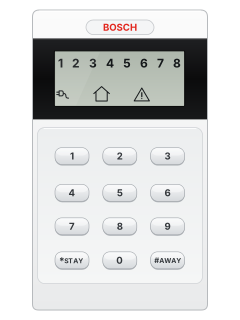
Start hereSolution 2100 / 3100 Control Panel User ManualUser guide · 32 pages · 737 KBRead it nowSolution 2100 / 3100 icon codepad cheat sheet
Arm (away)your code#orhold#
- Key in your code, then press # (the key also marked AWAY).
- Two beeps, the AWAY icon comes on and the exit time starts. The codepad beeps every 2 seconds, with one long beep for the last 10 seconds.
- Holding # until two beeps also arms, unless your installer has switched one-button arming off.
- A zone still open when the exit time ends is left out until it closes. After that, opening it sets off the alarm.
- One long beep and no arming means a zone is open and forced arming is off. Close that zone or isolate it first.
Arm while homeyour code*orhold*orhold0
- The panel calls this STAY Mode 1. Zones your security company chose stay off, so you can move around inside.
- Key in your code, then press * (marked STAY). Holding * until two beeps also works, unless your installer has turned that off.
- Two beeps and the STAY icon comes on. The zones being left off flash until the exit time ends, then one short beep.
- STAY Mode 2: hold 0 until two beeps. It leaves off the zones set up with a master code.
- To choose those zones: master code, 4, #, then each zone number followed by *, then # to finish.
Disarmyour code#
- Key in your code, then press #. Two beeps confirm it.
- A zone number still flashing afterwards is a zone that went into alarm before you disarmed.
- Under threat, add 9 to the end of your code, then press #. It disarms and sends a silent hold-up alarm.
- That silent alarm only helps if a monitoring company receives your alarms. A phone the panel rings can't tell it apart.
Bypass a zone**zone*then#
- The panel calls this isolating. Each detector or door contact is a zone: 1 to 8 on the 2100, 1 to 16 on the 3100.
- Press * twice. Three beeps and the STAY icon flashes.
- Key in the zone number, then *. That zone's number flashes. Enter it again with * to take it back off.
- Press # once you have picked them all. Two beeps and the system goes back to disarmed. Then arm as usual.
- If your installer has set up code to isolate, start with *, your code, then * instead of pressing * twice.
Alarm memorymaster code8#
- A flashing zone number after you disarm shows the zone that went into alarm.
- To replay the event memory, key in your master code, then 8, then #. Three beeps.
- The last 256 events play on the codepad one at a time, newest first, with a beep for each.
- The icon codepad replays alarms, arming and disarming. System faults show in the event memory on the text codepad only.
Chime on or offhold4
- The panel calls this day alarm. Zones 1 to 4, if your installer has set them up for it, beep the codepad while disarmed.
- To turn it on, hold 4 until three beeps. To turn it off, hold 4 until two beeps.
- While day alarm is on, the STAY icon flashes once every 3 seconds.
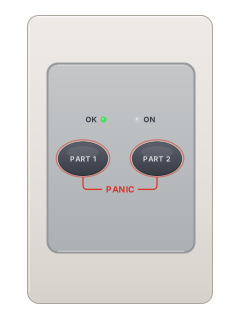
Panic alarm1+3or*+#
- Press 1 and 3 together, or * and # together. Holding them or a quick press both work.
- The codepad gives one long beep and an audible panic alarm starts.
- 4 and 6 together start a fire alarm, and 7 and 9 together a medical alarm.
- Your installer can turn these off or make them silent.
Change a codemaster code1#user number#new code#
- Only the master code holder can add or change codes, the master code included.
- Key in the master code, then 1, then #. Three beeps and the STAY and AWAY icons flash.
- Key in the user number (1 to 32), then #. Two beeps and that number lights up.
- Key in the new code, then #. Two beeps and the icons go out.
- To delete that user's code, press * instead of keying in a new one.
Set the date and timemaster code6#datetime#
- Key in the master code, then 6, then #. Three beeps and the STAY and AWAY icons flash.
- Key in day, month and year, then hour and minute, two digits each. Use the 24-hour clock.
- Press #. Two beeps and the icons go out. A long beep means a mistake: start again.
- The panel records a date and time fault each time it is powered down. Set the clock again after that.
Trouble lightshold5
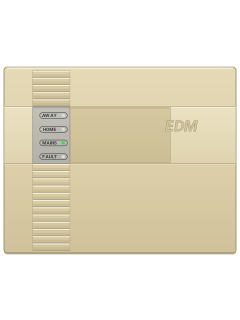
- A fault flashes the FAULTS or MAINS icon and the codepad beeps once a minute. Press # once to stop the beeps.
- Hold 5 until two beeps. The STAY and AWAY icons flash together and a zone number shows the type of fault (see the table).
- Press that number's key to see the detail. For types 2 to 5, hold it until two beeps.
- Press # to leave. The FAULTS icon stays on until the fault is fixed, and most faults need your installer.
- A flashing MAINS icon means the mains power is off. It stops flashing when the power comes back.
Pages 8, 17 to 20 of the Solution 2100 / 3100 Control Panel User Manual1 System fault: battery, date and time, wireless receiver, siren outputs, phone line, power supply or panel tamper 2 A wireless detector's battery is low (3100 only) 3 A zone's tamper has been set off 4 A detector hasn't seen movement for the time your installer set 5 A wireless detector has stopped reporting (3100 only) 6 The panel couldn't report to your monitoring company or phone 7 or 9 A codepad, add-on module or power supply module fault 8 A remote's battery is low
Why is my keypad beeping or showing a trouble light?
Most keypads beep or light up a trouble indicator when something needs attention, such as a low backup battery, a power cut or a lost phone or internet connection. Your user guide explains what each light or code means on your model. If it keeps happening, or you are not sure, call your installer or monitoring company.
More Bosch EDM models
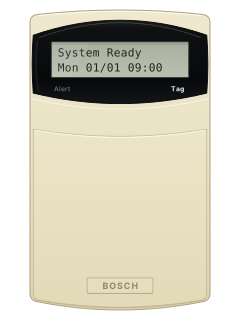
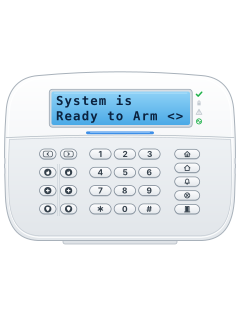
LCD codepad with prox 'Tag' reader, door closed (CP736B type)
Solution 16+ / 64 / 144
18 manuals
Also fitsSolution 6000, 4 manuals
Is anyone watching your alarm?
An alarm that only makes a noise relies on someone hearing it. A monitored alarm reports to our A1 graded, NZSA approved control room, watched 24/7 by a team that is New Zealand owned and operated. We can monitor most existing alarms, so you may not need a new one. Thinking about a new alarm or security cameras? Ask us for a quote.
Prefer to talk now? Call us on 0800 339 999.
Home: alarm monitoringBusiness: business monitoringInstaller: bureau monitoring

Manuals are the property of their manufacturers and are provided for reference only; their inclusion here does not imply any endorsement by the manufacturer.