
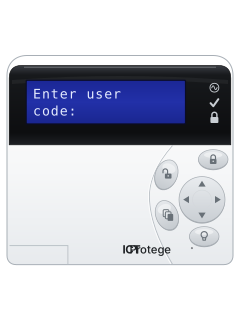
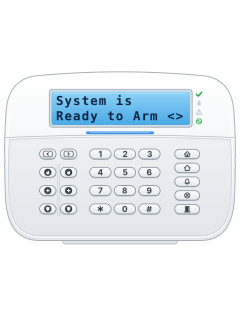
PRT-KLCDAlphanumeric LCD keypad

ICT Protege Keypads manuals
Start hereProtege Alphanumeric LCD Keypad User ManualUser guide · 65 pages · 3.3 MBRead it nowKeypad cheat sheet
Arm (away)
- For the PRT-KLCD, PRT-KLCS and PRT-TS50. The touchscreen (PRT-TLCD): see its own guide.
- Key in your code and press the return-arrow key (Enter). The screen shows your area, is DISARMED; if not, press the stacked-pages key (Menu), 1.
- With more than one area, pick one with the up and down arrows. Then press the key with the closed padlock (Arm).
- The screen shows in EXIT delay: leave before the exit time runs out. How the keypad beeps meanwhile depends on your installer.
- A zone open? The screen names it. Close it and press Arm to check again, or press BYPASS or FORCE if allowed.
Pages 15, 22 to 25 of the Protege Alphanumeric LCD Keypad User ManualPage 8 of the Protege Touch Sense LCD Keypad User ManualReturn-arrow key (Enter) Logs you on, after your code Closed-padlock key (Arm) Arms the area shown in EXIT delay The exit time is running: leave now X key (Clear) Logs you off Arm while home
- For the PRT-KLCD, PRT-KLCS and PRT-TS50. The touchscreen (PRT-TLCD): see its own guide.
- Protege calls this stay arming, and your installer has to turn it on. Doors and windows arm; the stay zones stay off.
- Log on (your code, then the return-arrow key). Press the stacked-pages key (Menu), 1; choose the area with up/down, then press STAY.
- After the exit time the screen shows the area as stay armed. To change to full arming, disarm, then arm again.
- PRT-TS50, if turned on: hold STAY for 2 seconds for instant stay. The exit time drops to 1 second and entry doors alarm at once.
Pages 15, 25 and 26 of the Protege Alphanumeric LCD Keypad User ManualPage 9 of the Protege Touch Sense LCD Keypad User ManualSTAY Starts stay arming the area shown Return-arrow key (Enter) Logs you on, after your code in EXIT delay The exit time is running Disarm
- For the PRT-KLCD, PRT-KLCS and PRT-TS50. The touchscreen (PRT-TLCD): see its own guide.
- Enter by the entry door and disarm before the entry time ends. Log on with your code, then the return-arrow key (Enter).
- Press the stacked-pages key (Menu), then 1. Select the area with up/down and press the open-padlock key (Disarm).
- The screen shows is DISARMED. Some users are set up so their code and Enter alone disarm the main area.
- Under threat, use a duress code if your installer has set one up. It disarms and sends a silent alert to your monitoring company.
Pages 8, 15, 22 and 23, 31, 34 of the Protege Alphanumeric LCD Keypad User ManualPage 12 of the Protege LCD Touchscreen Keypad User Manualin ENTRY delay The entry time is running: disarm now in ALARM An alarm: the Disarm key silences it and disarms Armed light flashing The system is in alarm is DISARMED Done Bypass a zone
- For the PRT-KLCD, PRT-KLCS and PRT-TS50. The touchscreen (PRT-TLCD): see its own guide.
- Each detector or door contact is a zone. A bypassed zone is ignored until all its areas are next disarmed.
- Key in your code, press the return-arrow key (Enter), then the stacked-pages key (Menu), 7, 1. The screen shows a zone.
- The up arrow moves to the next zone; the right arrow lets you key in a zone number.
- Press 1 to bypass it, 2 to take the bypass off, or 3 to latch it. A latched bypass stays until you take it off.
Pages 25, 28 and 29 of the Protege Alphanumeric LCD Keypad User ManualPage 10 of the Protege Touch Sense LCD Keypad User Manualis not BYPASSED The zone will arm as normal is BYPASSED The zone is left out BYPASS while arming Skips the open zone on the screen, if you are allowed Alarm memory
- For the PRT-KLCD, PRT-KLCS and PRT-TS50. The touchscreen (PRT-TLCD): see its own guide.
- After an alarm, the PRT-KLCD may show Alarms in memory, logon to view.
- Log on (your code, then the return-arrow key), then press the stacked-pages key (Menu), 5, 1. On the PRT-KLCS and PRT-TS50, MEMORY also goes there.
- Use up/down to choose an area showing *Alarms In Mem*. Press Enter for its first alarm; the down arrow shows the next.
- Note them down. If you are allowed, Enter acknowledges one and clears it. The memory may also clear itself when you next arm.
Pages 15 and 16 of the Protege Alphanumeric LCD Keypad User ManualPages 5, 13 of the Protege Touch Sense LCD Keypad User Manual*Alarms In Mem* This area has alarms stored Had alarm on, then a zone name The zone that went into alarm in AREA, then an area name The area it happened in 24HR on the first line It was a tamper alarm Stacked-pages key (Menu) Leaves the list Reset smoke detectors
- For the PRT-KLCD and PRT-KLCS; the PRT-TS50 guide has no smoke reset. Other keypads: see their own guides.
- A fire alarm makes the keypad sound three tones every 2 seconds until someone keys in a valid code.
- No fire? Key in your code, then ring your security company straight away to stop a call-out.
- To reset the smoke detectors, hold X (Clear) and the return-arrow key (Enter) together for 3 seconds.
- Your installer has to turn the fire features on.
Page 63 of the Protege Alphanumeric LCD Keypad User ManualPage 16 of the Protege Touch Sense LCD Keypad User ManualThree tones every 2 seconds A fire alarm Delayed fire zone Reported after 30 seconds; a reset before then cancels it Any key in those 30 seconds Quiets the alarm for 90 seconds Panic alarmhold1+3hold1+3hold1+3
- PRT-KLCD, PRT-KLCS and PRT-TS50 only. Open the PRT-KLCD flap for number keys; other pictured keypads need their own guides.
- Press and hold 1 and 3 together for 3 seconds to send a panic alarm.
- PRT-KLCD and PRT-KLCS: 4 and 6 send a medical alarm and 7 and 9 a fire alarm, held the same way.
- Depending on the set-up, sirens sound or a silent alarm goes to your monitoring company.
- Your installer has to turn these keys on.
Change a code
- For the PRT-KLCD and PRT-TS50; the PRT-KLCS guide has no code menu. Other keypads: see their own guides. Your code needs the user menu.
- Log on (your code, then the return-arrow key, Enter), then press the stacked-pages key (Menu), 2, 1.
- PRT-KLCD: it starts at your own user number. Key in another if needed, press Enter, then Enter again to keep the name.
- PRT-KLCD: at User code, the open padlock clears the old code. Key in the new one (1 to 8 digits) and press Enter to save.
- PRT-TS50: if Edit PIN is available, enter your new PIN twice. Verified means it is saved; site rules set the allowed PIN length.
Pages 15, 31 and 32, 35 of the Protege Alphanumeric LCD Keypad User ManualPage 10 of the Protege LCD Touchscreen Keypad User ManualSelect user to modify PRT-KLCD: which user to change User code PRT-KLCD: key in the new code here Enter new PIN, then Re-enter new PIN PRT-TS50: the new PIN, twice Verified PRT-TS50: the new PIN is saved X key (Clear) Logs you off when you are done Set the date and time
- For Protege SE with a PRT-KLCD keypad. On GX or LE, ask your installer; other keypads: see their own guides.
- Log on (your code, then the return-arrow key, Enter), then press the stacked-pages key (Menu), 6, 1. Your code must be allowed into the time menu.
- Key in the time on the 24-hour clock and press Enter. Then the date as day, month and four-digit year, and press Enter.
- Pick the day of the week with 1 (up) and 3 (down), then press Enter. Menu goes back; X (Clear) finishes.
- A Clock Inaccurate trouble means the clock needs setting this way.
Pages 15, 18, 54 of the Protege Alphanumeric LCD Keypad User ManualPages 32, 271 of the PRT-CTRL-SE Protege Integrated System Controller Reference ManualEnter system time Key in the time, 24-hour clock Enter system date Key in day, month and four-digit year Day of Week 1 scrolls up, 3 scrolls down Trouble lights
- PRT-KLCD and PRT-KLCS: a flashing power/trouble light means a trouble. The PRT-KLCD may also show System Trouble, logon to view.
- Log on (your code, then the return-arrow key, Enter). Press the stacked-pages key (Menu), 5, 2; on PRT-KLCS or PRT-TS50, press Enter.
- The message scrolls, or use the left and right arrows. The down arrow shows the next. Enter acknowledges one if asked.
- The PRT-KLCD can beep every 120 seconds until you view the trouble or it clears. Tell your security company.
- The light descriptions are for PRT-KLCD/PRT-KLCS and may be installer-programmed. PRT-TLCD: see its own guide.
Pages 8, 15, 17 and 18, 23 of the Protege Alphanumeric LCD Keypad User ManualPage 12 of the Protege Touch Sense LCD Keypad User ManualPower/trouble light on Powered and working normally Power/trouble light flashing A trouble: check it in the menu, 5, 2 Power/trouble light off Complete power failure Armed/alarm light flashing In alarm: log on, select the area and press the open-padlock key to silence it AC Mains Failure Mains power to a device is off; it is running on its backup battery Low/Missing Battery A backup battery is low or damaged Clock Inaccurate The clock is wrong: set the time, or ask your installer Reporting A message did not get through to your monitoring company Send a test signal
- For Protege SE with a PRT-KLCD keypad. On GX or LE, or another keypad, ask your installer.
- Log on (your code, then the return-arrow key, Enter). Press the stacked-pages key (Menu), 8, 3, then Enter to confirm.
- It sends a test report to your monitoring company. It only goes out if the panel's test zone is in an area that is armed at the time.
- Your code must be allowed into the System menu, as the master code is.
Pages 14 and 15, 41, 43 of the Protege Alphanumeric LCD Keypad User ManualPages 32, 281 of the PRT-CTRL-SE Protege Integrated System Controller Reference ManualReturn-arrow key (Enter) Logs you on after your code, then confirms the test Stacked-pages key (Menu), then 8 Opens the System menu 3 in the System menu Test Report: sends a test report to your monitoring company
All ICT Protege Keypads manuals
User guides 3
Installer manuals 1
Nothing here matches that.
Try a shorter search, or search every brand.
More ICT models
PRT-KLCDAlphanumeric LCD keypad
Protege GX
6 manuals
Also fitsProtege Keypads, 4 manualsProtege SE, 5 manualsProtege LE, 3 manualsProtege WX, 4 manuals
PRT-KLCDAlphanumeric LCD keypad
Protege SE
5 manuals
Also fitsProtege Keypads, 4 manualsProtege GX, 6 manualsProtege LE, 3 manualsProtege WX, 4 manuals
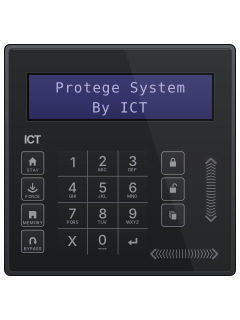
PRT-KLCDAlphanumeric LCD keypad
Protege LE
3 manuals
Also fitsProtege Keypads, 4 manualsProtege GX, 6 manualsProtege SE, 5 manualsProtege WX, 4 manuals
Is anyone watching your alarm?
An alarm that only makes a noise relies on someone hearing it. A monitored alarm reports to our A1 graded, NZSA approved control room, watched 24/7 by a team that is New Zealand owned and operated. We can monitor most existing alarms, so you may not need a new one. Thinking about a new alarm or security cameras? Ask us for a quote.
Prefer to talk now? Call us on 0800 339 999.
Home: alarm monitoringBusiness: business monitoringInstaller: bureau monitoring

Manuals are the property of their manufacturers and are provided for reference only; their inclusion here does not imply any endorsement by the manufacturer.