
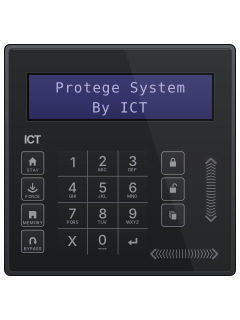
PRT-KLCSTouch Sense LCD keypad

ICT Protege WX manuals
Start herePRT-WX-DIN Protege WX End User GuideUser guide · 28 pages · 1.0 MBRead it nowKeypad cheat sheet
Arm (away)
- Log on: key in your code, then press the key with the return arrow (Enter). Press any key to skip the greeting.
- Your area shows with its status. With more than one area, pick one with the up and down arrows.
- Press the key with the closed padlock (Arm). The system checks the zones are closed, then the exit delay starts and the keypad beeps.
- Press X (Clear) to log off, and leave before the exit delay ends.
- If allowed, FORCE instead of Arm skips open zones set up for it, such as a motion detector near the keypad.
Pages 20 to 23 of the PRT-WX-DIN Protege WX End User GuideReturn-arrow key (Enter) Logs you on, after your code Closed-padlock key (Arm) Starts arming the area shown X key (Clear) Logs you off Exit-delay beeps The exit delay is running: leave now Arm while home
- Protege calls this stay arming, and your installer has to turn it on.
- The outside doors, windows and sensors arm. The inside sensors stay off, so you can move around.
- Log on with your code and the key with the return arrow (Enter), then press STAY.
- If the outside zones are closed, the exit delay runs, then the area is stay armed.
Pages 20 to 22 of the PRT-WX-DIN Protege WX End User GuideOutside doors, windows and sensors Armed Inside sensors (stay zones) Left off, so you can move around Return-arrow key (Enter) Logs you on, after your code Disarm
- Opening the entry door starts the entry time. The keypad sounds a steady tone until you disarm.
- Log on with your code and the return-arrow key (Enter). Pick the area with the arrows if needed, then press the open-padlock key (Disarm).
- If an alarm went off while you were out, a message shows. Press Enter to acknowledge it, then carry on.
- Under threat, use your duress code, if your installer has set one up. It disarms and sends a silent message to the monitoring station.
- Your duress code may be a separate code, or your own code with the last digit one higher: 4567 becomes 4568, and 4569 becomes 4560.
Pages 20 and 21, 23 and 24 of the PRT-WX-DIN Protege WX End User GuideSteady tone The entry time is running: disarm now Open-padlock key (Disarm) Disarms the area shown and silences alarms Return-arrow key (Enter) Logs you on; acknowledges an alarm message Bypass a zone
- Each sensor or door contact is a zone. The WX guide calls them inputs.
- Bypassing lets you arm with one zone left out, such as a window open for fresh air.
- Log on and press the key with the closed padlock (Arm). If a zone is open, the keypad beeps and shows a warning.
- Press BYPASS. The screen says how many zones are bypassed.
- Press Arm again to carry on arming, or the open-padlock key (Disarm) to stop and leave the area disarmed.
Pages 5, 20, 22 of the PRT-WX-DIN Protege WX End User GuideBYPASS Leaves out the open zone shown Closed-padlock key (Arm) Carries on arming Open-padlock key (Disarm) Stops arming; the area stays disarmed Alarm memory
- Alarms stay in memory until someone acknowledges them. Each area keeps its last 4.
- When you disarm after an alarm, a message shows. Press the key with the return arrow (Enter) to acknowledge it.
- To look later, log on, then press the stacked-pages key (Menu), MEMORY and Enter. The arrow keys step through the details.
- If your code is allowed to acknowledge alarms, press Enter to clear the alarm shown from memory.
- Alarm memory is also in the View menu: Menu, then 5.
Pages 20, 23 and 24 of the PRT-WX-DIN Protege WX End User GuidePage 53 of the PRT-WX-KIT-AB2 PRT-WX-DIN Protege WX Installation and Programming ManualStacked-pages key (Menu), then MEMORY Opens the alarm memory Return-arrow key (Enter) Acknowledges the alarm shown and clears it Arrow keys Step through the alarm details Reset smoke detectors
- Hold X (Clear) and the key with the return arrow (Enter) together for 3 seconds to reset the smoke detectors.
- It only works if your installer has set up a smoke reset output for the keypad.
Page 109 of the PRT-WX-KIT-AB2 PRT-WX-DIN Protege WX Installation and Programming ManualPage 4 of the Protege Alphanumeric LCD Keypad Installation ManualX key Clear Return-arrow key Enter Panic alarmhold1+3
- Open the PRT-KLCD flap. Hold 1 and 3 together for 3 seconds to send a panic alarm.
- Hold 4 and 6 the same way for a medical alarm, or 7 and 9 for a fire alarm.
- Depending on the set-up, sirens sound or a silent alarm goes to your monitoring station.
- Your installer has to turn these keys on first.
Page 24 of the PRT-WX-DIN Protege WX End User GuidePage 13 of the Protege Alphanumeric LCD Keypad Installation Manual1 and 3, held 3 seconds Panic alarm 4 and 6, held 3 seconds Medical alarm 7 and 9, held 3 seconds Fire alarm Trouble lights
- The power/trouble light flashes when there is a trouble: call your installer.
- If your installer has turned it on, the keypad also shows the trouble on its screen.
- To see them, log on, then press the stacked-pages key (Menu), 5, 2. On the Touch Sense keypad, press Enter too.
- The message scrolls, or use the left and right arrows. The down arrow shows the next. Enter acknowledges one, if allowed.
- Your installer sets what the red and green lights show, so yours may differ.
Page 19 of the PRT-WX-DIN Protege WX End User GuidePages 53, 91 and 92, 110 of the PRT-WX-KIT-AB2 PRT-WX-DIN Protege WX Installation and Programming ManualPower/trouble light on Power is on and all is normal Power/trouble light flashing A trouble: call your installer Power/trouble light off May mean no power; newer PRT-KLCD keypads can also hide their lights while idle Green light Usually: the area is disarmed Red light Usually: the area is armed AC Failure trouble Mains power is off at a device Battery trouble A battery is low or missing Reporting trouble A report did not reach the monitoring station
All ICT Protege WX manuals
Installer manuals 3
Nothing here matches that.
Try a shorter search, or search every brand.
More ICT models
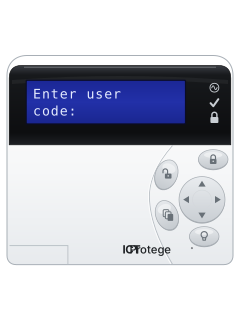
PRT-KLCDAlphanumeric LCD keypad
Protege GX
6 manuals
Also fitsProtege Keypads, 4 manualsProtege SE, 5 manualsProtege LE, 3 manualsProtege WX, 4 manuals
PRT-KLCDAlphanumeric LCD keypad
Protege SE
5 manuals
Also fitsProtege Keypads, 4 manualsProtege GX, 6 manualsProtege LE, 3 manualsProtege WX, 4 manuals
PRT-KLCDAlphanumeric LCD keypad
Protege Keypads
4 manuals
Also fitsProtege GX, 6 manualsProtege SE, 5 manualsProtege LE, 3 manualsProtege WX, 4 manuals
PRT-KLCDAlphanumeric LCD keypad
Protege LE
3 manuals
Also fitsProtege Keypads, 4 manualsProtege GX, 6 manualsProtege SE, 5 manualsProtege WX, 4 manuals
Is anyone watching your alarm?
An alarm that only makes a noise relies on someone hearing it. A monitored alarm reports to our A1 graded, NZSA approved control room, watched 24/7 by a team that is New Zealand owned and operated. We can monitor most existing alarms, so you may not need a new one. Thinking about a new alarm or security cameras? Ask us for a quote.
Prefer to talk now? Call us on 0800 339 999.
Home: alarm monitoringBusiness: business monitoringInstaller: bureau monitoring

Manuals are the property of their manufacturers and are provided for reference only; their inclusion here does not imply any endorsement by the manufacturer.