

Moose Z1200 manuals
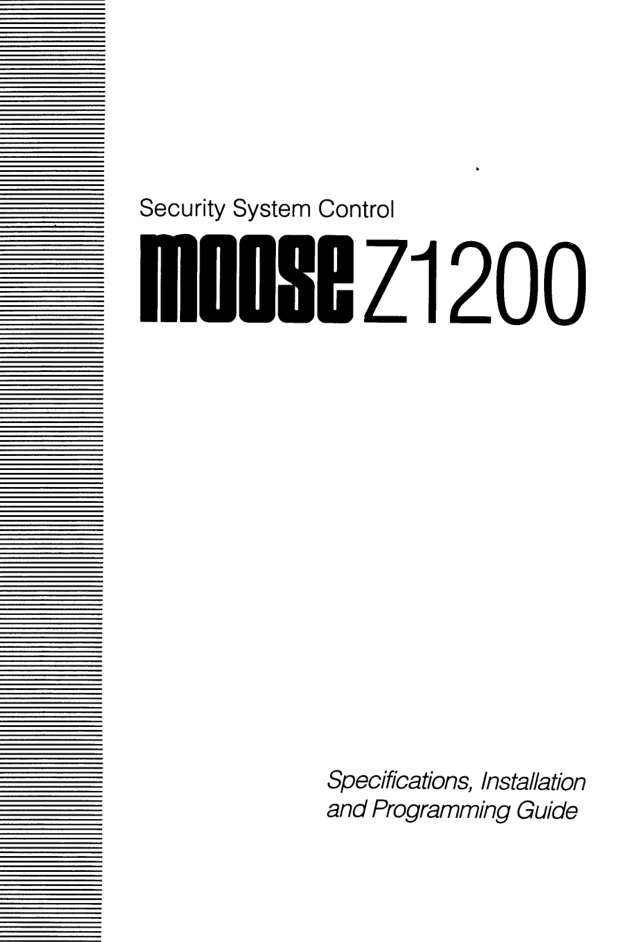
Start hereMoose Z1200 User GuideUser guide · 12 pages · 1.8 MBRead it nowKeypad cheat sheet
Arm (away)your code*
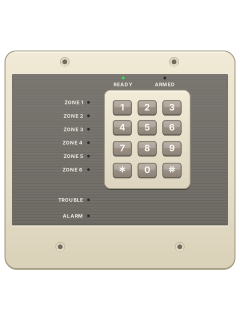
- Quick keys are for the LED keypad: wait for STATUS, enter your code, then press [*]. ARMED lights.
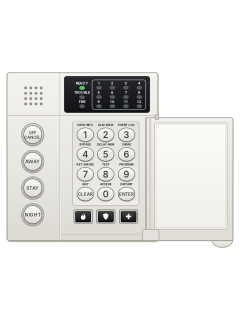
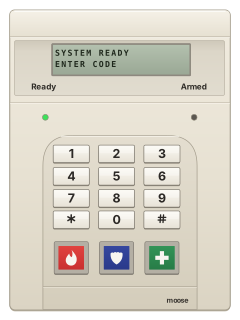
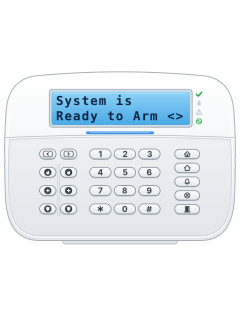
- LCD keypad: press the arrow key below each named screen choice. The menu key is the one left of [1], above [A].
- LCD keypad: at READY, select ARM, enter your code, select ENTER, then AWAY. Leave before the countdown ends.
- At NOT READY, select DISPLAY and NEXT to find open zones. Close them before arming.
Arm while home
- LCD keypad: press the arrow key below each named screen choice. The menu key is the one left of [1], above [A].
- LCD keypad: select ARM, enter your code, then select ENTER.
- At ARMING LEVEL, press STAY to arm only the perimeter zones (outside doors and windows) and leave the inside zones off.
- Or press NIGHT to arm the perimeter plus the inside zones set up for night.
- An LED keypad can only arm away.
Pages 3 and 4, 9 of the Moose Z1200 User GuideSTAY on the LCD Arms perimeter zones; leaves inside zones off NIGHT on the LCD Arms perimeter and selected inside zones Disarmyour code*
- Quick keys are for the LED keypad: enter your code, then press [*].
- LCD keypad: press the arrow below DISARM, enter your code, then press the arrow below ENTER.
- The LCD returns to Z1200 READY TO ARM.
- If an alarm has happened while you were out, stay outside and call for help.
Alarm memory
- LCD keypad: press the arrow key below each named screen choice. The menu key is the one left of [1], above [A].
- LCD keypad only: While an alarm sounds, press SILENCE, key in your code and press ENTER. EVENT HISTORY comes up.
- Press TIME to see when the alarm happened. QUIT takes you back to the normal display.
- For older events, disarm first. Press the menu key (left of the 1 key) twice, then EVENT HISTORY, your code and ENTER. Not every code is allowed.
- Press DISPLAY, then YES to start with the newest event. DISP shows more, such as the user, zone, date and time.
Pages 4, 6 of the Moose Z1200 User GuidePage 24 of the Moose Z1200 Specifications Installation and Programming GuideTIME on the LCD Shows when the alarm occurred DISP in event history Shows more event details QUIT on the LCD Leaves the history display Chime on or off
- LCD keypad: press the arrow key below each named screen choice. The menu key is the one left of [1], above [A].
- LCD keypad only: Chime makes the keypad sound when chosen doors and windows open while the system is disarmed.
- Press the menu key (left of the 1 key) once, then ENABLE CHIME.
- Key in your code and press ENTER, then press CHANGE to turn chime on or off.
- Press * to go back to the normal display.
Page 6 of the Moose Z1200 User GuideENABLE CHIME on menu 1 Opens the chime option CHANGE on the LCD Switches chime on or off Reset smoke detectors
- LCD keypad: press the arrow key below each named screen choice. The menu key is the one left of [1], above [A].
- LCD keypad only: False fire alarm? Press SILENCE, key in your code and press ENTER. The keypad and the fire alarm go quiet.
- The panel still reports the fire to your monitoring centre, so ring them straight away.
- Press the menu key three times, then SMOKE RESET. Key in your code and press ENTER.
- If the alarm carries on or comes back after the reset, call your alarm company.
Pages 4, 6 and 7, 10 of the Moose Z1200 User GuideSMOKE RESET on menu 3 Resets smoke detectors after an alarm Panic alarmholdAorholdBorholdC
- On the LCD keypad, A, B and C are left of the digits. Your installer enables them and assigns burglary, fire, hold-up or medical.
- Hold the key down for about three seconds. On some systems one press is enough.
- Most are set to work whether the system is armed or not.
- To stop an alarm, select SILENCE using the arrow below it, enter your code and select ENTER. For silent hold-up, use RESET ALARMS on menu 1.
- If your installer has set up a duress code, arming or disarming with it works as normal but sends a silent alarm.
Change a code
- LCD keypad: press the arrow key below each named screen choice. The menu key is the one left of [1], above [A].
- With a master code: press the menu key three times, select PROG OPTIONS, enter the code, then select ENTER and USER CODES.
- Select NEXT until the user appears. Enter the new code, then select STORE. An error tone means it was refused.
- To delete the selected user code, enter [0] and select STORE.
- Press [*] to finish. Programming also ends after three minutes without a key press.
Pages 8 and 9 of the Moose Z1200 User GuideNEXT on the LCD Selects the next user STORE on the LCD Saves the new code Test the system
- LCD keypad: press the arrow key below each named screen choice. The menu key is the one left of [1], above [A].
- Tell your monitoring company before and after testing. Disarm; menu twice; select SYSTEM TEST, enter your code, then select ENTER and LOCAL TEST.
- The sirens and lights run briefly. Open each door and window and walk past each detector.
- TESTED and UNTESTED list the zones; QUIT ends the test. Your code must have permission to test.
- BATTERY TEST on the same menu shows battery voltage: about 14.0 volts is good; below 11.2 fails.
Pages 4 to 6 of the Moose Z1200 User GuidePages 24, 48 of the Moose Z1200 Specifications Installation and Programming GuideTESTED on the LCD Lists zones already tested UNTESTED on the LCD Lists zones still to test QUIT on the LCD Ends the local test Trouble lights
- LCD keypad: a trouble beeps and shows SYSTEM TROUBLE. Press the arrow key below DISPLAY to see the fault.
- To quiet the beeps for a fire trouble, press the arrow key below DISPLAY and enter your code. The message stays until it's fixed.
- LCD keypad: hold [*] for three seconds to reset a MISSING KEYPAD or memory error.
- LOW BATTERY and A.C. POWER FAILURE stay on screen until the power or battery is back to normal.
- Call your alarm company about any trouble you can't clear.
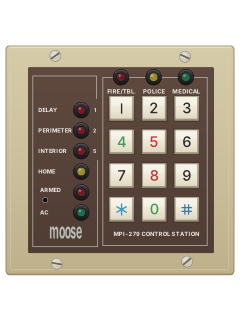
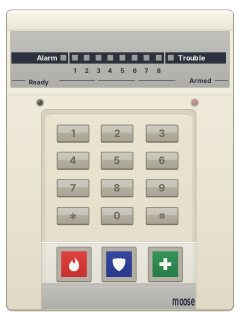
Pages 3, 5 and 6, 9 and 10 of the Moose Z1200 User GuidePages 8, 13, 48 of the Moose Z1200 Specifications Installation and Programming GuideLCD Ready light on All zones are closed: ready to arm LCD Ready light off A zone is open: the arrow key below DISPLAY shows which LCD Armed light on The system is armed LCD Armed light blinking A burglar alarm has gone off LOW BATTERY The backup battery is low. On mains power it recharges within 16 hours A.C. POWER FAILURE The mains power is off FIRE TROUBLE A fire alarm wire may be broken: call your alarm company LED keypad TROUBLE light A fault such as power, battery or smoke circuit trouble
Why is my keypad beeping or showing a trouble light?
Most keypads beep or light up a trouble indicator when something needs attention, such as a low backup battery, a power cut or a lost phone or internet connection. Your user guide explains what each light or code means on your model. If it keeps happening, or you are not sure, call your installer or monitoring company.
All Moose Z1200 manuals
User guides 1

Nothing here matches that.
Try a shorter search, or search every brand.
More Moose models
Is anyone watching your alarm?
An alarm that only makes a noise relies on someone hearing it. A monitored alarm reports to our A1 graded, NZSA approved control room, watched 24/7 by a team that is New Zealand owned and operated. We can monitor most existing alarms, so you may not need a new one. Thinking about a new alarm or security cameras? Ask us for a quote.
Prefer to talk now? Call us on 0800 339 999.
Home: alarm monitoringBusiness: business monitoringInstaller: bureau monitoring

Manuals are the property of their manufacturers and are provided for reference only; their inclusion here does not imply any endorsement by the manufacturer.