
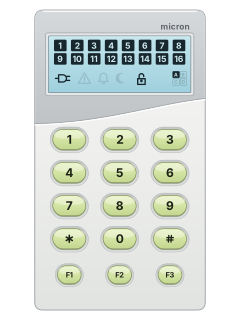
Icon LCD keypad

Micron Meridian manuals
Start heremicron meridian User manualUser guide · 21 pages · 697 KBRead it nowKeypad cheat sheet
Arm (away)your code#or0#ARM
- Icon LCD keypad: enter your 4-digit code, then press #. This arms every area.
- Icon LCD keypad: for quick arm without a code, press 0, then #.
- It will not arm while a zone is faulted, unless your installer set that zone to allow forced arming.
- The Micron Lite app and the Control tab of the alarm's web page can arm it too.
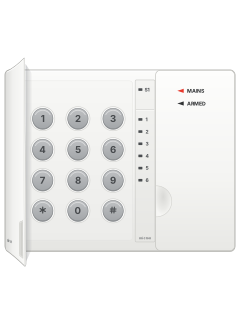
- NiteWatch: press ARM to arm the system, if your installer has configured the station.
Arm one area1*your code#
- Your installer can split the building into areas A to D, for example Downstairs. Keys 1 to 4 pick the area.
- Icon LCD keypad: press the area number, *, your code, then #. Use this keypad to select an area.
- Quick arm one area without a code: its number, then #.
- To disarm that area only, finish with * instead of #.
- NiteWatch: use the Icon LCD keypad to select an area; its ARM button has no documented area-selection sequence.
Disarmyour code*ARM
- Icon LCD keypad: enter your 4-digit code, then press *. This disarms every area.
- One area only: press its number (1 to 4), then *, your code and * again.
- Under threat: the area's number, *, your code followed by its last two digits again, then *. A duress message goes to the monitoring station.
- NiteWatch: press ARM to disarm only if your installer enabled this. Otherwise, use your code at the Icon LCD keypad.
Bypass a zone9zone#
- Each detector or door contact is a zone. Only zones your installer made bypassable can be bypassed.
- Icon LCD keypad: press 9, the zone number, then #. Zones 10 and up take both digits.
- Then arm as usual.
- On the web page's Control tab, clicking a zone bypasses it.
- NiteWatch: use the Icon LCD keypad or web page to bypass zones.
Chime on or offhold5
- Icon LCD keypad: hold 5 for 2 seconds to turn chime on or off.
- Chime only works on zones your installer set as chime zones, such as a shop door.
- NiteWatch: use the Icon LCD keypad for this setting.
Panic alarmhold7orhold8orhold9EMERGENCY
- Icon LCD keypad: hold 7 for panic, 8 for medical or 9 for fire, for 2 seconds.
- It sends a panic, medical or fire message to your monitoring station, if you have that service.
- NiteWatch: press EMERGENCY for a panic alarm. A monitoring report is sent if that service is enabled.
- In the Android keypad app, touch and hold Fire, Medical or Panic for two seconds.
Change a codeholdF30your codenew code#
- Use the Icon LCD keypad, including if you have NiteWatch. Hold F3 for 2 seconds until two beeps.
- Press 0, key in the old 4-digit code, then the new one, then #.
- On a Meridian 8 or 16 this changes user code 1.
- On a Meridian 64 the same keys change user code 3.
- Other codes are set on the Users tab of the alarm's web page.
Test the system5#
- Icon LCD keypad: press 5, then # to start a walk test.
- Walk past each detector. The keypad sounds each time one works.
- NiteWatch: use the Icon LCD keypad to start this test.
Trouble lights*
- Use the Icon LCD keypad to check faults, including with NiteWatch. A flashing warning triangle means a fault; press *.
- Numbers on the screen show each fault (see the table). Press any key to stop the fault beep.
- Meridian 8 and 16: hold 6 to turn the keypad's fault beep off, or back on.
- Fault 2: press 2 to see which wireless detector needs a battery. If none shows, it is the alarm's own battery.
- The table is for the Meridian 8 and 16. On a Meridian 64, 5 is the siren output, 6 the auxiliary fuse and 7 wireless.
Pages 13 and 14 of the micron meridian User manualPage 25 of the Meridian 64 XML V8.C3.D Installation Manual1 Mains power 2 Battery 3 Phone line 4 Network (Ethernet) 5 Auxiliary output 6 Siren fuse 7 Text messages (SMS) 8 Wireless (RF): press 8 to see which wireless zone has the problem Send a test signalholdF1
- Meridian 64: on the Icon LCD keypad, hold F1 for 2 seconds. It sends a test report (Periodic Test 1) to your monitoring station.
- No code is needed. NiteWatch has no F keys, so use the Icon LCD keypad.
- The Meridian 8 and 16 manual doesn't list this. There F1 runs Function Key 1, which your installer can set up, for example to open a garage door.
Why is my keypad beeping or showing a trouble light?
Most keypads beep or light up a trouble indicator when something needs attention, such as a low backup battery, a power cut or a lost phone or internet connection. Your user guide explains what each light or code means on your model. If it keeps happening, or you are not sure, call your installer or monitoring company.
All Micron Meridian manuals
User guides 1
Installer manuals 3

Nothing here matches that.
Try a shorter search, or search every brand.
More Micron models
Is anyone watching your alarm?
An alarm that only makes a noise relies on someone hearing it. A monitored alarm reports to our A1 graded, NZSA approved control room, watched 24/7 by a team that is New Zealand owned and operated. We can monitor most existing alarms, so you may not need a new one. Thinking about a new alarm or security cameras? Ask us for a quote.
Prefer to talk now? Call us on 0800 339 999.
Home: alarm monitoringBusiness: business monitoringInstaller: bureau monitoring
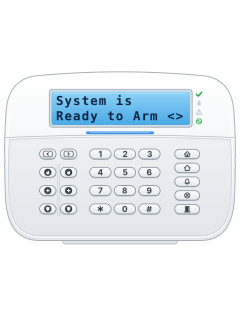

Manuals are the property of their manufacturers and are provided for reference only; their inclusion here does not imply any endorsement by the manufacturer.