
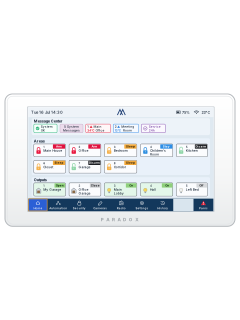
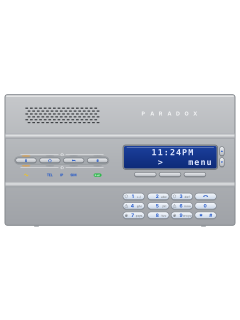
K70M 7-inch touchscreen keypad (M series)

Paradox M25 manuals
Start hereBlueEye User Manual V1User guide · 24 pages · 2.1 MBRead it nowKeypad cheat sheet
Arm (away)Arm
- K70M touchscreen: on the Home screen, pick the areas to arm, then tap Arm. If troubles are listed, tap Acknowledge All to go on.
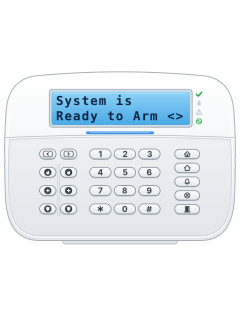
- K38M keypad: press the key with the closed padlock, key in your 6-digit code, then press the bent-arrow key.
- Two areas? On the K38M, press [1] or [2] (marked AREA) before the bent arrow, or [3] for both. With none picked, area 1 arms.
- The K38M display shows ARM beside the area. Its backspace key (a cross) cancels or clears a mistake; a long failure beep means it didn't work.
- BlueEye app: tap Arm/Disarm beside the area, then Arm.
Arm while homeStayorSleep
- K70M touchscreen: on the Home screen, pick the areas, then tap Stay or Sleep instead of Arm.
- K38M keypad: Stay is the key with a house, Sleep the key with a bed. Press it, key in your code, pick the area if you have two, then the bent-arrow key.
- If Arm without Code is turned on for the K38M in BlueEye, hold the key instead, and press the area key when the display blinks.
- Holding a K38M key also steps up: Stay to Sleep, or Stay or Sleep to full Arm.
- In the BlueEye app, pick Stay or Sleep instead of Arm.
DisarmDisarmyour code
- K70M touchscreen: on the Home screen, pick the areas, tap Disarm and key in your code. During an alarm, the Alarm screen lets you disarm.
- K38M keypad: press the key with the open padlock, key in your code, pick the area if asked, then press the bent-arrow key.
- BlueEye app: tap Arm/Disarm beside the area, then Disarm.
Bypass a zone
- K70M touchscreen: tap Security, then Show Zones, then tap the zone. Turn its Bypass option on, or off to put the zone back.
- Arming with a zone open? The K70M offers Partial Arm (Bypass), which arms and bypasses the open zones.
- The K38M keypad and BlueEye app guides don't cover bypassing: ask your installer.
Pages 8 and 9, 11 and 12 of the K70M 7-inch Touchscreen Keypad Installation ManualSecurity The tab at the bottom of the screen: areas and zones Show Zones Lists every zone; tap one to open it Bypass Turns the bypass on or off for that zone Alarm memory
- K70M touchscreen: tap the message centre icon at the top of the Home screen, then Alarm in Memory. Tap Acknowledge All once you've seen them.
- BlueEye app: on the Home Screen, tap Events for the history of alarms and other activity.
Page 10 of the K70M 7-inch Touchscreen Keypad Installation ManualPage 13 of the BlueEye User Manual V1Alarm in Memory (K70M) The alarm events: tap it, then Acknowledge All Message Acknowledge (K70M) The system notices: tap it, then Acknowledge All Chime on or offSettingsBackSound & Chime
- K70M: tap Settings. It asks for a code; tap Back to carry on without one.
- Tap Sound & Chime, turn on the chime and pick the zones that should chime on the keypad.
Panic alarmholdPanic
- K70M touchscreen: hold the Panic button, at the bottom right of the screen, for 3 seconds. To cancel, tap the Mute button on the screen and enter your code.
- K38M keypad: press and hold keys 4 and 6 together (they carry a warning triangle).
- The panic can be set to off, silent or audible in the BlueEye app's general settings.
Change a code
- Codes are set in the BlueEye app. Open the site and tap the menu icon (three lines) at the top right of the Home screen.
- Tap Profile, then Edit next to System Codes.
- Key in a six-digit code and tap Save. You then use it on the keypad.
Pages 5 and 6 of the K38M Installation Manual V1The same digit more than three times in a row (444422) Avoid A repeated group of digits (234234) Avoid Digits running up or down in order Avoid Test the system
- BlueEye app: tap the menu icon, then Programming, then Hardware.
- Tap Zones, then Test Zones. Open and close each zone in turn.
- Tap End when you've done them all.
Pages 16, 18 of the BlueEye User Manual V1A zone jumps to the top of the list It has been opened 5 seconds after closing, it moves to the end That zone has been tested All Zones Tested Every zone has been tested Trouble lights
- K70M: alarms and system messages show in the Message Center at the top of the Home screen. Tap it to read them.
- To acknowledge them, tap Message Acknowledge, then Acknowledge All. Arming may ask you to acknowledge troubles first.
- K70M trouble beeps: tap Settings (Back skips the code), then Sound & Chime. Choose a beep every 5 or 30 seconds, or switch it off.
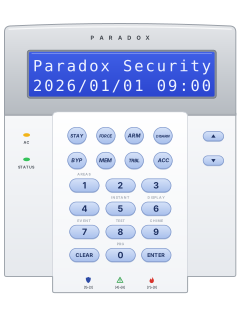
- K38M keypad: TROUBLE means a system problem, such as a tamper or flat battery (details in BlueEye's message centre); TROUBLE alone means lost contact.
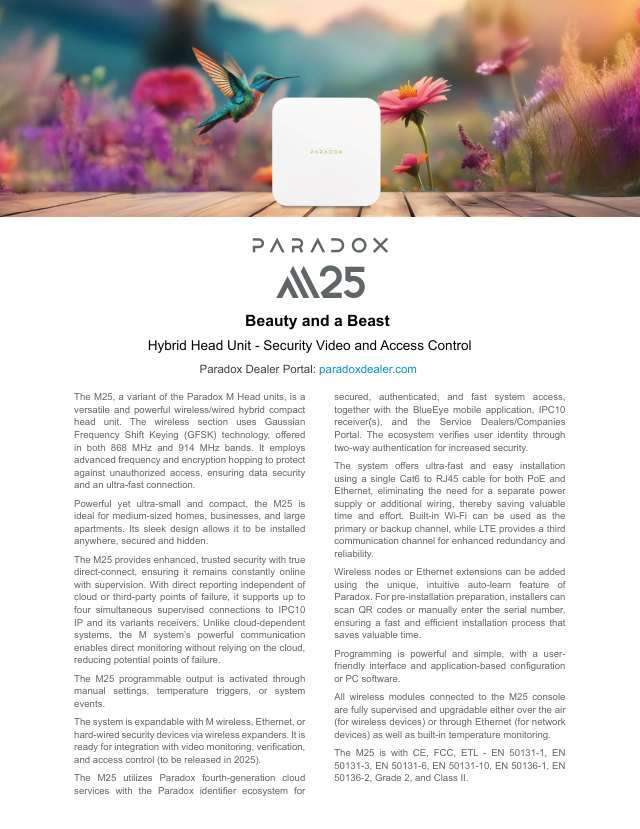
- If the M25 is offline over 20 minutes, you and your installer get a push notification. Its logo shows its state (table).
Pages 9 and 10, 16, 18 of the K70M 7-inch Touchscreen Keypad Installation ManualPages 6 and 7 of the K38M Installation Manual V1White Connected to the Paradox cloud: the BlueEye app can reach it Green, blinking Connected to the cloud over Wi-Fi Red Powered, but not connected to the cloud Red, blinking Running on battery and not connected Amber, flashing Starting up Blue, blinking Updating its firmware
Why is my keypad beeping or showing a trouble light?
Most keypads beep or light up a trouble indicator when something needs attention, such as a low backup battery, a power cut or a lost phone or internet connection. Your user guide explains what each light or code means on your model. If it keeps happening, or you are not sure, call your installer or monitoring company.
All Paradox M25 manuals
Installer manuals 24
Nothing here matches that.
Try a shorter search, or search every brand.
More Paradox models
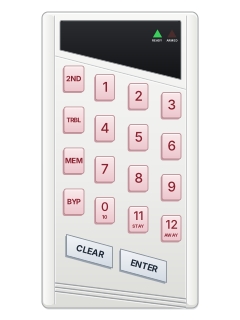
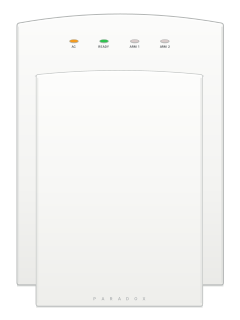
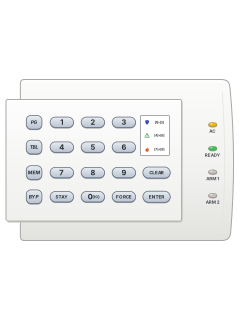
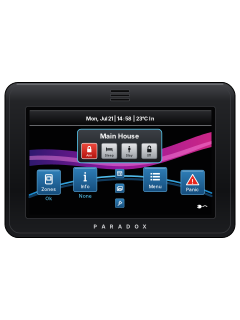
- Esprit E55 / E651 user guide, 1 installation manual and 2 more4 manuals
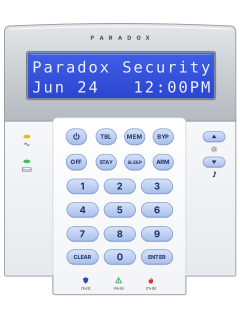
- K10 LED keypads1 quick guide1 manual
- K70M touchscreen1 installation manual1 manual
- K656 Touch Sense keypad1 user guide1 manual
- Magellan MG60601 user guide1 manual
- IP & cellular modules1 quick guide, 5 installation manuals and 29 more35 manuals
Is anyone watching your alarm?
An alarm that only makes a noise relies on someone hearing it. A monitored alarm reports to our A1 graded, NZSA approved control room, watched 24/7 by a team that is New Zealand owned and operated. We can monitor most existing alarms, so you may not need a new one. Thinking about a new alarm or security cameras? Ask us for a quote.
Prefer to talk now? Call us on 0800 339 999.
Home: alarm monitoringBusiness: business monitoringInstaller: bureau monitoring

Manuals are the property of their manufacturers and are provided for reference only; their inclusion here does not imply any endorsement by the manufacturer.