
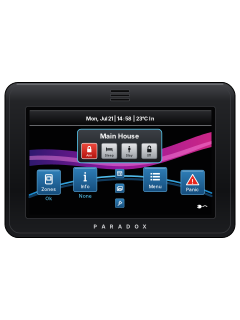
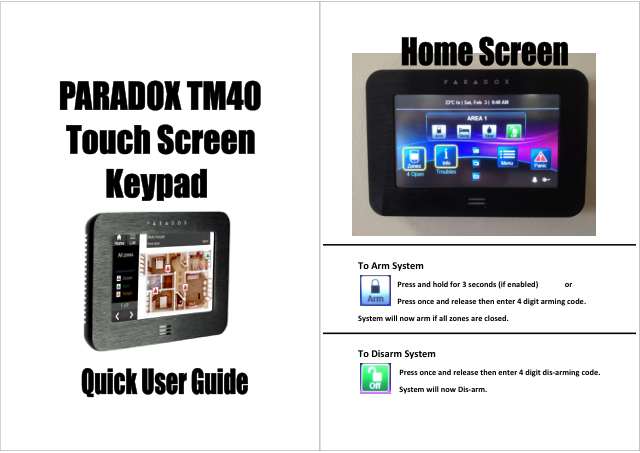
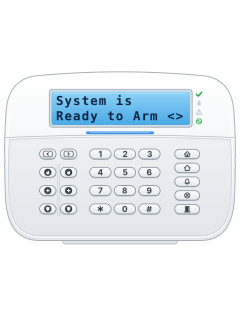
TM50Touchscreen keypad

Paradox Touchscreens & keypads manuals
Start hereEVOHD TM50 Touchscreen User ManualUser guide · 16 pages · 1.2 MBRead it nowTM50 / TM70 touchscreen cheat sheet
Arm (away)Armyour code
- For TM50 on SP/MG systems.
- Close the zones to be armed. On the main screen, touch [Arm], then enter your 4- or 6-digit code.
- On TM50 with EVO, touch [Arm/Disarm], choose the arming method, then enter your code.
Arm while homeStayyour codeorSleepyour code
- For TM50 on SP/MG systems.
- Close the zones to be armed. Touch [Stay] or [Sleep], then enter your code.
- Stay leaves the programmed Stay zones off; Sleep leaves only the programmed Sleep zones off.
DisarmOffyour code
- For TM50 on SP/MG systems.
- Touch [Off] on the main screen, then enter your code.
- On TM50 with EVO, use [Arm/Disarm], choose disarming and enter your code.
Bypass a zoneMenuBypass Zones
- For TM50 on SP/MG systems.
- Touch [Menu], then [Bypass Zones], and follow the on-screen prompts to leave a zone out when arming.
- On TM50/TM70 with EVOHD+, use Menu, Security Functions, Bypass Zones.
Alarm memoryInfoAlarm Memory
- For TM50/TM70 on EVOHD+. For SP/MG Info screens, follow your keypad's own guide.
- Touch [Info], then [Alarm Memory] to see stored alarms.
Chime on or offMenuZone Chiming
- For TM50 on SP/MG systems.
- Touch [Menu], then [Zone Chiming], and follow the on-screen prompts.
- On TM50/TM70 with EVOHD+, use Menu, Security Functions, Zone Chiming; choose the zones and chime period.
Panic alarmPanic
- Touch [Panic] on the main screen.
- Panics work only if your installer has set them up. Your installer also decides what each one sends.
- On an EVOHD+ system, touch [Emergency] after [Panic]. Your installer has to add the Panic button to the home screen first.
Change a codeMenuSystem Setupmaster codeUsers
- For TM50 on SP/MG systems.
- Touch [Menu], [System Setup], enter the master code, then touch [Users].
- To change a code, scroll to the user with the arrows, then touch the blue pencil button beside them.
- New user: touch the Add button, key in the new code and touch [Save], then key it in again and touch [Save].
- Touch [Skip] unless adding a remote. On EVO, use Menu, User Codes; follow its extra prompts and [Next] buttons.
Set the date and timeMenuSystem Setupmaster codeTime and Date
- For TM50 on SP/MG systems.
- Touch [Menu], [System Setup], enter the master code, then touch [Time and Date]. Follow the screen prompts.
- On TM50 with EVO, use Menu, System Settings, Time & Date.
Trouble alertsInfoTroubles
- For TM50/TM70 on EVOHD+. For SP/MG Info screens, follow your keypad's own guide.
- Touch [Info], then [Troubles] to view the listed problems.
- Clock Loss is the one to fix yourself: set the time and date (Menu, System Settings, Time & Date).
- For any other trouble, call your installer to have the system serviced.
Pages 23, 32, 35 of the EVOHD+ User Guide V1.05AC Failure Mains power is off: the system is running on its backup battery Battery Trouble The backup battery is disconnected or needs charging or replacing TLM1 The panel can't use the phone line Fail to Communicate The panel couldn't reach the monitoring station Zone Tamper A zone has been tampered with Zone Low Battery A wireless device needs a new battery Zone Fault A wireless device lost contact, or a smoke detector has a fault Clock Loss The time and date were reset: set them again Send a test signalMenuAdvancedSpecial FunctionsSend Test Report
- For TM50/TM70 on an EVOHD+ panel. Our TM50 guide for SP/MG systems doesn't show a test report.
- Touch [Menu], then [Advanced] and [Special Functions], then [Send Test Report].
- It sends a test report to your monitoring company. Use it when your installer or monitoring company asks.
- On a keypad this function needs the master code, so have it ready in case the screen asks for a code.
Why is my keypad beeping or showing a trouble light?
Most keypads beep or light up a trouble indicator when something needs attention, such as a low backup battery, a power cut or a lost phone or internet connection. Your user guide explains what each light or code means on your model. If it keeps happening, or you are not sure, call your installer or monitoring company.
All Paradox Touchscreens & keypads manuals
User guides 3
Installer manuals 8
Nothing here matches that.
Try a shorter search, or search every brand.
More Paradox models
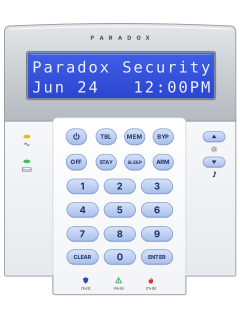
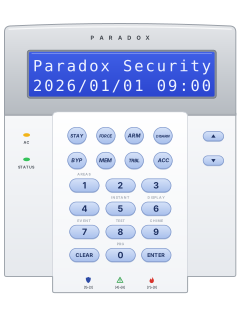
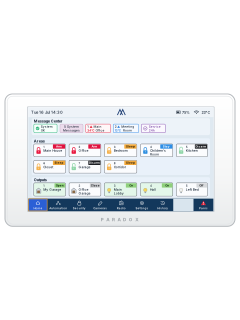
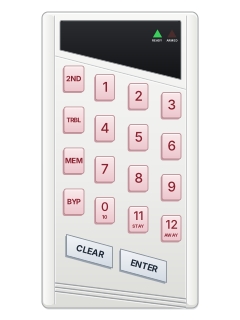
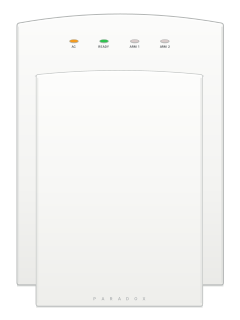
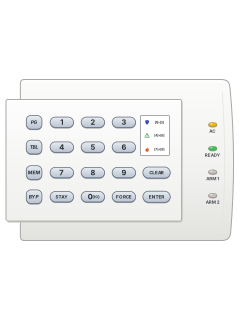
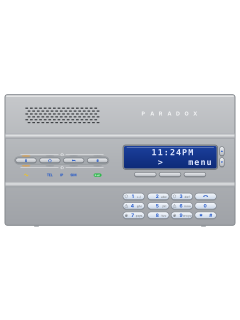
- Esprit E55 / E651 user guide, 1 installation manual and 2 more4 manuals
- K10 LED keypads1 quick guide1 manual
- K70M touchscreen1 installation manual1 manual
- K656 Touch Sense keypad1 user guide1 manual
- Magellan MG60601 user guide1 manual
- IP & cellular modules1 quick guide, 5 installation manuals and 29 more35 manuals
Is anyone watching your alarm?
An alarm that only makes a noise relies on someone hearing it. A monitored alarm reports to our A1 graded, NZSA approved control room, watched 24/7 by a team that is New Zealand owned and operated. We can monitor most existing alarms, so you may not need a new one. Thinking about a new alarm or security cameras? Ask us for a quote.
Prefer to talk now? Call us on 0800 339 999.
Home: alarm monitoringBusiness: business monitoringInstaller: bureau monitoring

Manuals are the property of their manufacturers and are provided for reference only; their inclusion here does not imply any endorsement by the manufacturer.