
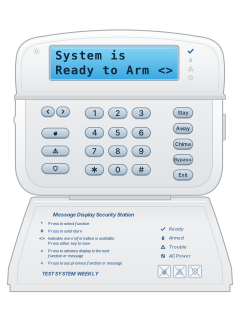
WT5500Wireless keypad

DSC Alexor manuals
Start hereAlexor useManual · 27 pages · 584 KBRead it nowKeypad cheat sheet
Arm (away)your codeorholdAway
- WT5500/WT5500P only (WTK5504 touchscreen: see its own guide). Close doors and windows; the Ready tick must be on.
- Enter your code, or hold [Away] (a plain house on some WT5500s) for 2 seconds; enter your code if asked. WT5500P also accepts tags.
- The Armed and Ready lights come on. Leave while the keypad beeps; the beeping changes for the last 10 seconds.
- When the time is up, Ready goes out, Armed stays on and the keypad goes quiet.
- Changed your mind? Key in your code to stop the arming.
Arm while homeholdStayyour codeor*9your code
- WT5500/WT5500P only. WTK5504 touchscreen: ask your installer for its guide.
- With Ready on, hold [Stay] (a house with a person on some WT5500s) for 2 seconds, then enter your code. Stay inside.
- When the exit time ends, Ready goes out, Armed stays on and a bypass message shows.
- [*][9] then your code arms in Stay with no entry delay. The keypad stays quiet and the exit time is doubled.
- Once armed in Stay, [*][1] arms inside zones except Night zones. Disarm before entering those protected areas.
Disarmyour code
- WT5500/WT5500P only (WTK5504 touchscreen: see its own guide). Wake a dark keypad with any key, then enter your code.
- On a WT5500P, your prox tag also disarms. Coming in, disarm before the steady entry tone ends.
- Wrong code? A 2-second error tone sounds. Press [#] and try again.
- Alarm by mistake? Key in your code to silence it, then ring your monitoring company.
Bypass a zone*12-digit zone#
- WT5500/WT5500P only (WTK5504 touchscreen: see its own guide). A bypassed zone cannot set off the alarm.
- With the system disarmed, press [*][1]. Key in your code if the keypad asks.
- Enter the zone as 2 digits (05 for zone 5), or scroll to it and press [*].
- [0][0] clears every bypass and [9][9] brings back the last lot.
- Press [#] to finish. Disarming clears bypasses except on 24-hour zones; use Clear Bypass to remove those.
Alarm memory*3
- WT5500/WT5500P only (WTK5504 touchscreen: see its own guide). After an alarm, the keypad shows 'Alarm Memory'.
- Press [*][3], then scroll with the arrow keys to see which zones went off. Press [#] to leave.
- To clear the memory, arm and then disarm the system.
- If it went off while you were out, the memory shows as you disarm. Go carefully: someone may still be inside.
Chime on or off*4orholdChime
- WT5500/WT5500P: press [*][4], or hold [Chime] (a bell on some WT5500s) for 2 seconds. WTK5504: ask your installer for its guide.
- Three beeps means door chime is on; one long tone means it's off.
Panic alarmholdthe key with a shield on it
- WT5500/WT5500P: hold the key with a shield on it, bottom left, for 2 seconds. WTK5504: ask your installer for its guide.
- The keypad beeps: the alarm is being sent to the monitoring station. The siren may or may not sound.
- The flame (Fire) and triangle (Auxiliary) keys above it work the same way. None of them work unless your installer has programmed them.
Pages 6, 8, 20 of the Alexor useFlame key Fire alarm Triangle key Auxiliary alarm (not for medical calls) Shield key Panic alarm Change a code*5master codeuser numbernew code#
- WT5500/WT5500P only (WTK5504 touchscreen: see its own guide). Disarm, then press [*][5] and enter the master code.
- Key in the 2-digit user number (01 to 16, or 40 for the master code), or scroll and press [*].
- Key in the new code: 4 or 6 digits, as set up by your installer.
- To delete a user code and its tag, press [*] as the first digit. The master code cannot be deleted.
- Key in another user number, or press [#] to finish.
Set the date and time*6master code1timedate#
- WT5500/WT5500P only (WTK5504 touchscreen: see its own guide). Press [*][6], the master code, then [1].
- Key in the time as 4 digits in 24-hour form: 1430 for 2:30 pm.
- Then key in the date as 6 digits, month first (MMDDYY): 28 September 2026 is 092826.
- Press [#] to finish.
- Seeing 'Loss of Time & Date' in the [*][2] trouble list? Press [*] there to go straight to setting it.
Trouble lights*2
- WT5500/WT5500P only (WTK5504 touchscreen: see its own guide). Trouble lights the triangle and beeps every 10 seconds; [#] stops it.
- Press [*][2]. The Trouble light flashes; scroll with the arrow keys to read each trouble.
- Outside the [*][2] menu, a flashing Trouble light means the keypad's batteries are low: replace them.
- Most troubles need a service call. A lost clock you can fix yourself by setting the time.
Pages 10, 17, 20 of the Alexor useService Required Low battery, system trouble, tamper or radio jamming. Press [1] for more, then call for service Loss of AC Power Mains power is off: check the power connection. The system runs on battery for several hours Telephone Line Fault or Failure to Communicate The panel can't use the phone line or reach the monitoring station Module/Sensor Fault A detector, keypad or siren has a problem. Press [5] to see which Module/Sensor Tamper A device has been tampered with. Press [6] to see which Module/Sensor Low Battery A wireless device needs new batteries. Press [7] to see which Loss of Time & Date All power was lost. Set the time and date again Panel Response Not Received The keypad has lost radio contact with the panel. Call for service if it keeps happening Send a test signal*6master code4
- WT5500/WT5500P only (WTK5504 touchscreen: see its own guide). Ring your monitoring company before and after the test.
- Disarm, then press [*][6], the master code, then [4]. This runs the System Test.
- It sends a test report to your monitoring company, if your installer has programmed one.
- The siren sounds for 4 seconds, medium then full, and the keypad lights come on. Press [#] to leave.
All DSC Alexor manuals
Installer manuals 9

Nothing here matches that.
Try a shorter search, or search every brand.
More DSC models
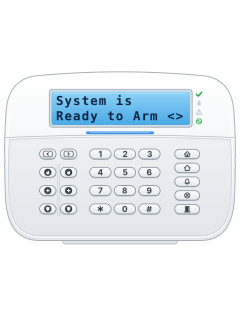
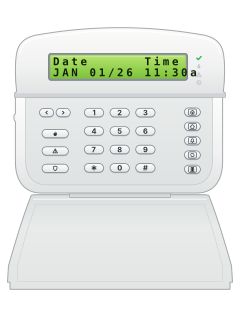
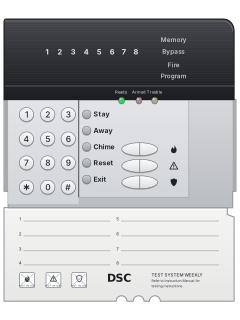
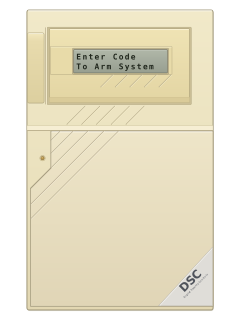
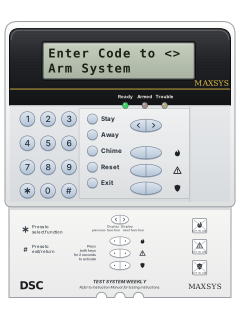
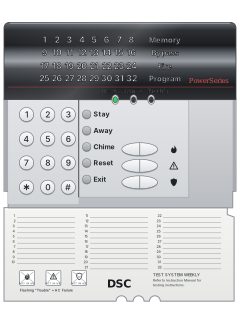
PowerSeries PC5532Z LED keypad, flap open (PC5516Z keys are the same)
PowerSeries PC5010 / PC5020 / 832
21 manuals
Also fitsPC1565, 4 manuals
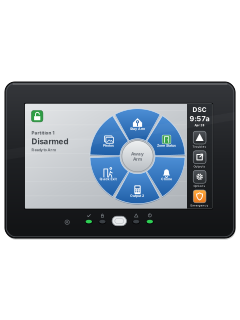
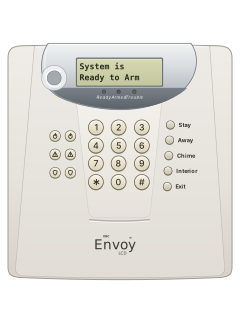
- Keypads1 user guide and 4 other manuals5 manuals
- Envoy1 user guide, 1 installation manual and 2 more4 manuals
- Impassa1 user guide and 3 installation manuals4 manuals
- PC10001 user guide and 1 installation manual2 manuals
- PC14041 user guide and 1 installation manual2 manuals
- PC20001 installation manual and 1 manual2 manuals
- WLS9001 user guide and 1 installation manual2 manuals
- SCW9045 / SCW90471 installation manual1 manual
- IP & cellular modules1 quick guide, 4 installation manuals and 9 more14 manuals
Is anyone watching your alarm?
An alarm that only makes a noise relies on someone hearing it. A monitored alarm reports to our A1 graded, NZSA approved control room, watched 24/7 by a team that is New Zealand owned and operated. We can monitor most existing alarms, so you may not need a new one. Thinking about a new alarm or security cameras? Ask us for a quote.
Prefer to talk now? Call us on 0800 339 999.
Home: alarm monitoringBusiness: business monitoringInstaller: bureau monitoring

Manuals are the property of their manufacturers and are provided for reference only; their inclusion here does not imply any endorsement by the manufacturer.